AI agent
Who can do it: Service provider (Administrator)
Where: Wialon Platform Studio
The AI agent works in your account for you. It can perform the actions available through the Wialon Platform API: set up your account, work with customers and devices, create entities, find the cause of issues, and more.
On this page:
- Starting the agent
- Giving a task to the agent
- Managing the conversation
- Tracking credit usage
- Changing the monthly credit limit
- Resuming work after the limit is reached
Starting the agent
-
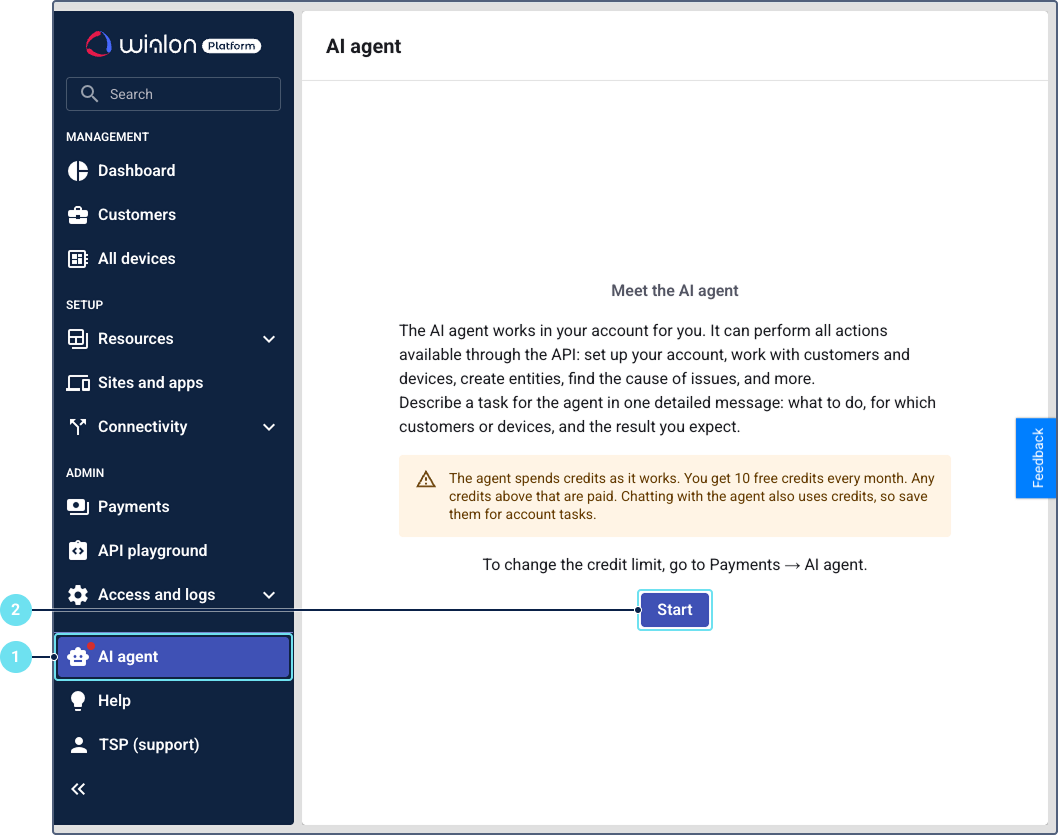
In Wialon Platform Studio, click AI agent in the navigation menu. You see the Meet the AI agent screen with a short description of the agent and of how credits work.
-
Click Start.
The agent is created right away, and the chat opens. Next time you open the page, you go straight to the chat.
If the service provider account has several administrators, they all share one chat with the agent and see each other’s messages.
Giving a task to the agent
- Describe the task in one detailed message: what to do, for which customers or devices, and the result you expect. For example: “Create geofences for all European countries for the customer named tech”.
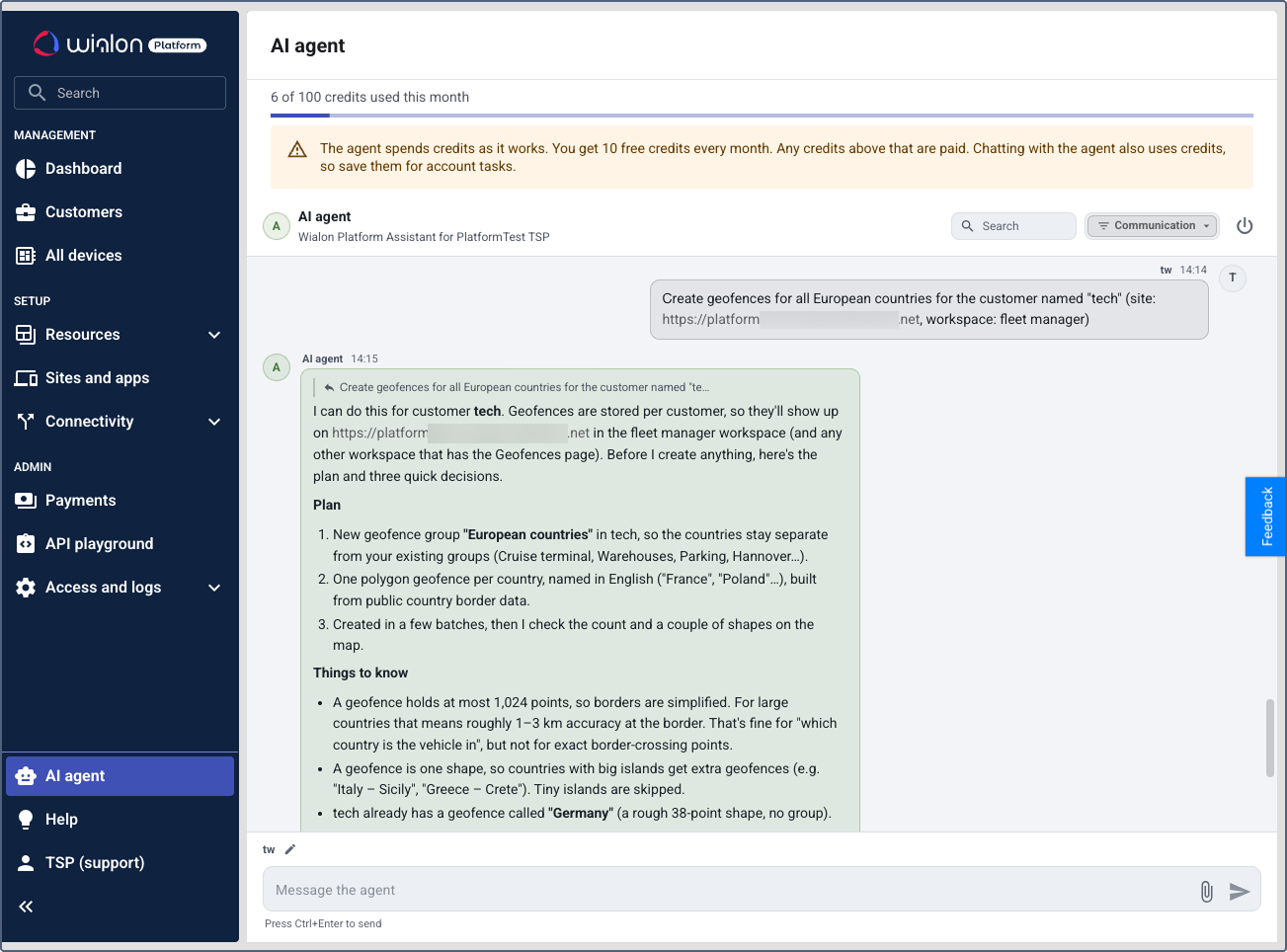
- Press Ctrl+Enter to send the message.
- Read the plan that the agent describes before it starts, including the limitations it ran into, and check that the result is what you need.
- Approve the actions the agent asks about in the chat. The agent asks for your approval before it creates, changes, or deletes anything in your account. Read-only requests, such as checking a setting or counting devices, don’t require approval.
The agent acts on behalf of your service provider account, so it can perform any action available through the Wialon Platform API.
Chatting with the agent also uses credits, so describe the task in one message instead of several short ones, and save the credits for account tasks.
Managing the conversation
In the chat header, you can do the following:
| Task | How to do it |
|---|---|
| Find a message in the history | Enter the text in the Search field. |
| Choose which records to show in the history | Click the filter button. Select everything to show all records, or chat only to show only your conversation with the agent. You can also select the required check boxes: Chat (your conversation with the agent), Activities (events around the agent, such as linking or unlinking a chat), and Operations (operations the agent performed). |
| Stop the current step while the agent is working | Click the stop icon. The stopped step is still charged. |
| Switch the agent off when it’s idle | Click the power icon. |
Tracking credit usage
The agent spends credits as it works. You get 10 free credits every month. Unused credits don’t carry over to the next month, and credits above the free ones are added to your monthly invoice.
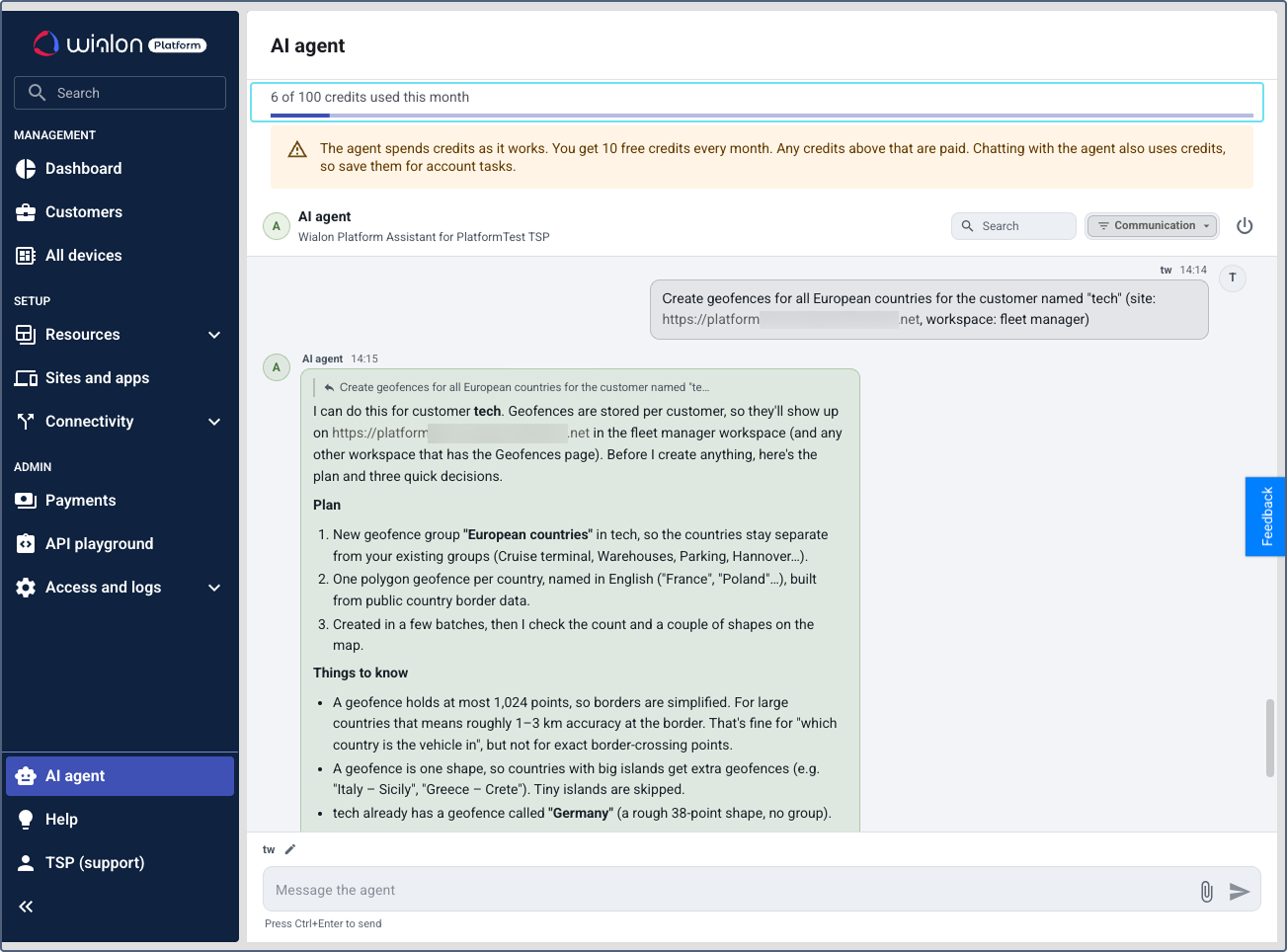
To check the current usage, look at the usage bar at the top of the AI agent page: it shows how many credits you’ve used this month and the current limit. The bar turns yellow at 80% of the limit and red at 100%.
To see the usage by day:
- In Wialon Platform Studio, open the Payments page.
- Go to the AI agent tab. The chart shows the credits spent for each day of the selected month (UTC), and the total for the month is displayed above the chart.
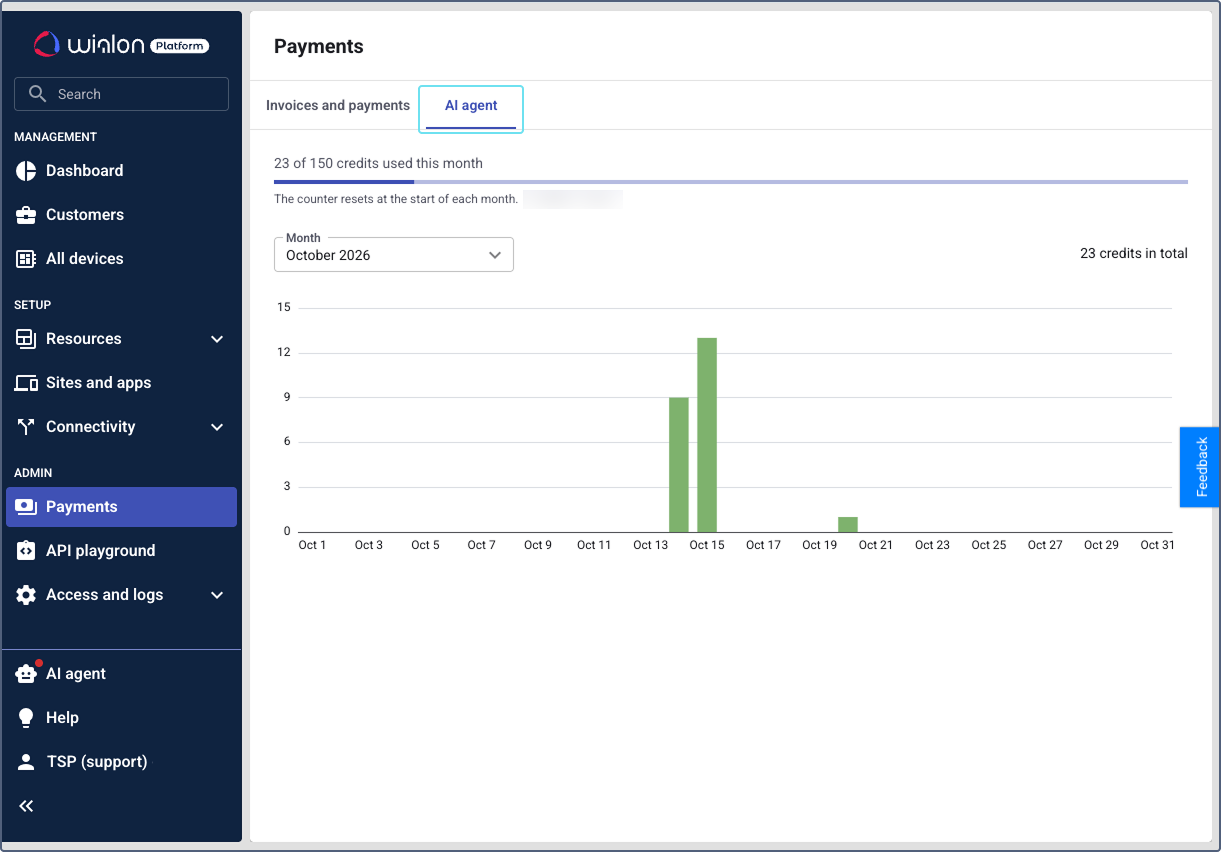
- Use the Month selector to switch between the last 12 months. The current month is selected by default.
If you haven’t started the agent yet, the tab has a link to the AI agent page where you can do it.
Changing the monthly credit limit
The monthly credit limit sets how much the agent can spend in a month.
- In Wialon Platform Studio, open the Payments page and go to the AI agent tab.
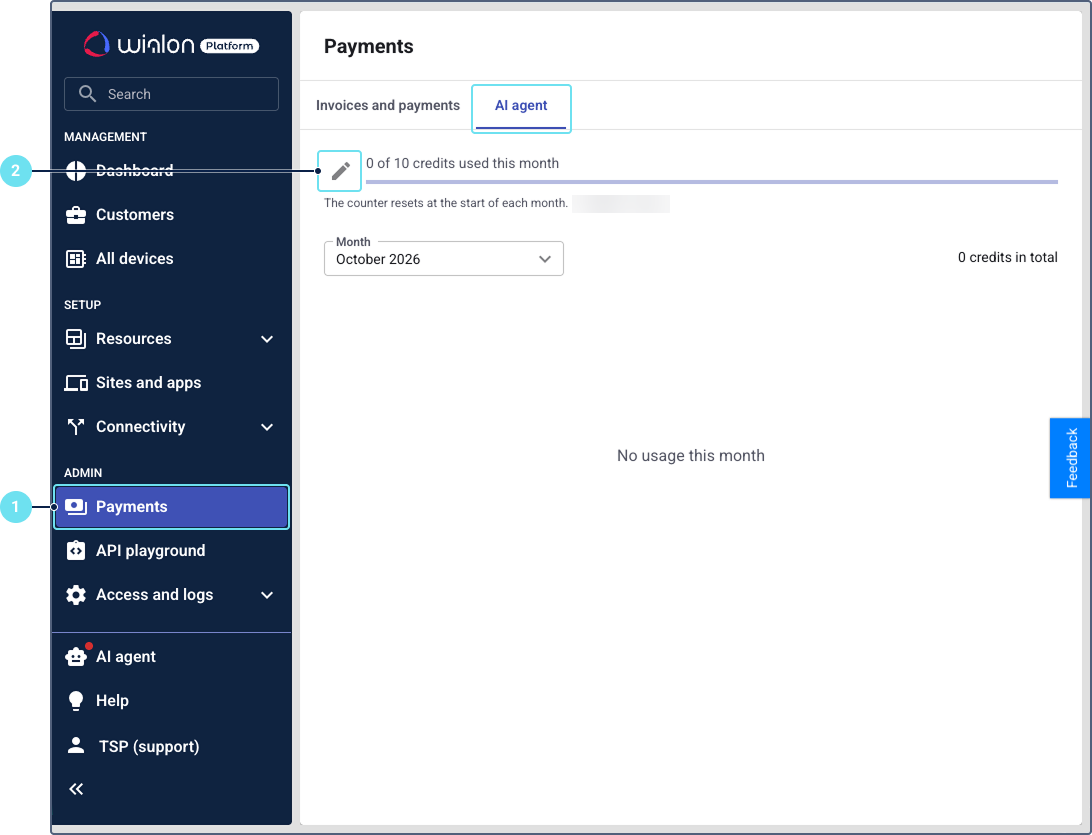
- Click the icon
 .
. - In the Monthly credit limit field, enter a whole number from 0 to 1000.
- Click Save.
The new limit can take up to a minute to be displayed.
You can’t change the limit during the trial period.
Resuming work after the limit is reached
When you reach the monthly limit, the agent stops working and shows a notification in the chat. Your chat history is kept, and the agent continues the work on its own as soon as credits are available again.
To resume the work, do one of the following:
- Set a higher limit. To do it, click Raise the limit in the notification or go to the AI agent tab on the Payments page (see Changing the monthly credit limit).
- Wait until the start of the next month, when the counter resets.