Managing the customer profile
Who can do it: Service provider
Where: Wialon Platform Studio
The customer profile brings the key information about a customer account together on one page. To open it, go to the Customers page and click the required customer in the list.
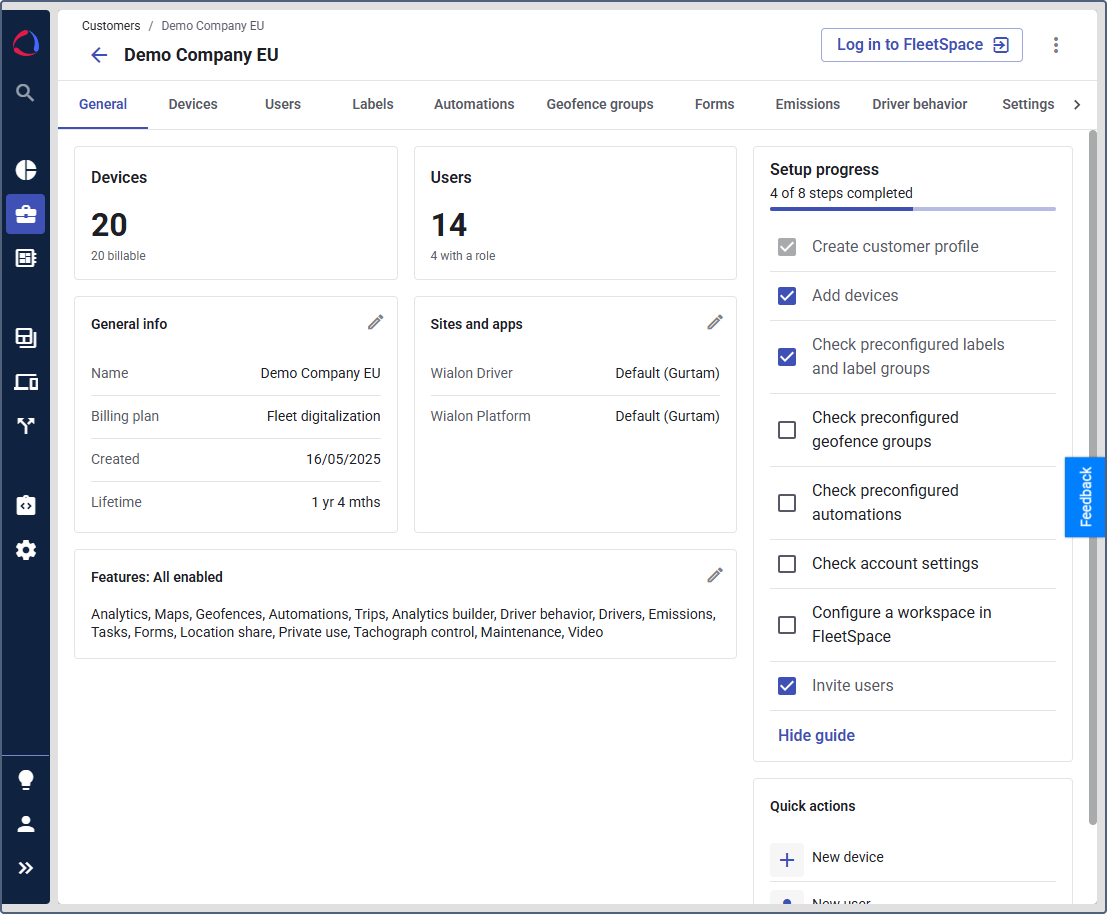
The profile contains the following sections: Devices, Users, General info, Sites and apps, Features, Setup progress, and Quick actions.
You can open Wialon Platform FleetSpace on behalf of the customer from the customer profile. To do this, click Log in to FleetSpace.
The other tabs of the customer (Devices, Users, Labels, Automations, Geofence groups, Forms, Emissions, Driver behavior, Settings, Audit log) depend on the billing plan and on the features enabled for the customer.
Devices
Shows the total number of devices in the account and how many of them are billable.
Users
Shows the total number of users in the account and how many of them have a role assigned.
General info
Shows the main details of the account:
- Name: The name of the customer. To rename the customer, click the icon
 on the section, enter the new name, and save the changes.
 - Billing plan: The billing plan assigned to the customer.
- Created: The date when the account was created.
- Lifetime: How long the account has existed.
You can’t edit the billing plan, the creation date, and the lifetime. You can copy the existing customer and assign them another billing plan.
Sites and apps
Shows which FleetSpace site and which Wialon Driver app are assigned to the customer. Default means that the customer uses the standard application instead of a branded one.
To assign another site or app, click the icon on the section, select the required option, and save the changes.
Features
Shows which features are enabled for the customer within the assigned billing plan.
To change the set of features:
- Click the icon on the section.
- Enable or disable the required features.
- Check the changes and click Save. To discard them, click Cancel.
The Save and Cancel buttons appear only when there are unsaved changes. Some features are required for the billing plan and can’t be disabled.
Only users who can update billing can change the features. Other users see the section but can’t edit it.
For the list of features included in each plan, see Assigning billing plans to customers.
Setup progress
The setup guide helps you complete the initial configuration of the account. It shows how many steps of the total number are completed and includes the following steps:
- Create customer profile
- Add devices
- Check preconfigured labels and label groups
- Check preconfigured geofence groups
- Check preconfigured automations
- Check account settings
- Configure a workspace in FleetSpace
- Invite users
Hover over a step and click the button  to go to the page where you can complete it. When you click the icon , the step is marked as completed.
To complete the Configure a workspace in FleetSpace step, select the FleetSpace site from the list of sites available to the customer.
to go to the page where you can complete it. When you click the icon , the step is marked as completed.
To complete the Configure a workspace in FleetSpace step, select the FleetSpace site from the list of sites available to the customer.
Click Hide guide to hide the steps for this customer. If the guide is not finished yet, confirm the action. You can hide the guide for all the customers by checking the box Hide for all customers.
Quick actions
The Quick actions section contains shortcuts to the most frequent tasks:
- New device: Sends you to the process of adding one device in the account.
- New user: Creates a user for the account.
- Share access: Sends you to the list of existing users. Select a user to to copy their credentials.
To delete the customer, click the icon  and select Delete.
See the guide on Updating a customer account using a template.