Editing the device information in Wialon Platform FleetSpace
Who can do it: Customer user
Where: Wialon Platform FleetSpace
You can keep the information about your devices up to date without contacting your service provider: change the device name, icon and color, plate number, VIN, and the values of additional properties. To do this, use the Devices tab of the Setup center page.
To open the list of your devices, select Setup center in the sidebar menu. The number next to the Devices tab name shows how many devices you have.
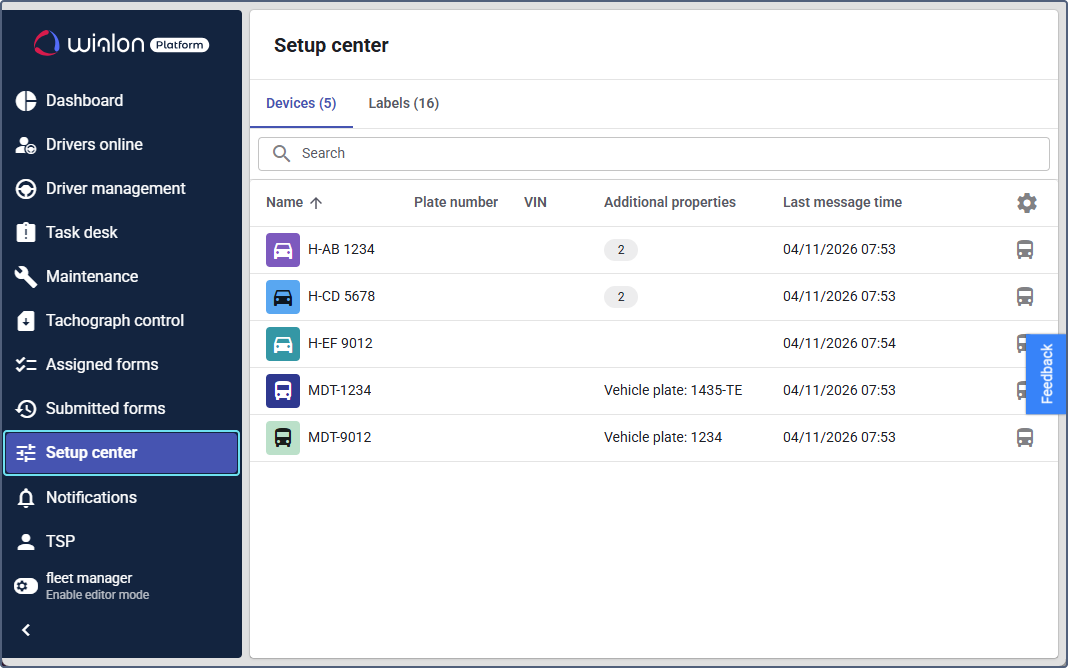
The table shows the device name and icon, plate number, VIN, additional properties, and last message time. If a device has several properties, a chip with their number is shown. Point to it to see the full list.
To find a device, use the Search bar. You can search by name, plate number, VIN, and additional property values.
If the service provider changed the term “Devices” for your interface (for example, to Vehicles), the tab and column names use this term.
You can’t create or delete devices here. To add or remove devices, contact your service provider.
Editing a device
To edit the device information, follow these steps:
- On the Devices tab of the Setup center page, click the device row.
- Change the following information if necessary:
- Name: The name shown in the device list and on the map.
- Icon and color: Click the device icon to select a color and an icon. For details, see Customizing the device color and icon.
- Plate number: The license plate number of the vehicle.
- VIN: The Vehicle Identification Number. The VIN must have 17 characters (numbers and uppercase letters, excluding I, O, and Q) and must not be used by another device of your account.
- In the Additional properties section, fill in the values of the additional properties. The properties are created by the service provider, so you can change only their values. If no additional properties are set up, the section isn’t shown.
- Click Save.
The changes are shown everywhere the device is used: in the device list, on the map, and in reports. If you try to leave the page without saving, the system asks you to confirm the action.
If the device sends a different VIN in its messages, the VIN you entered manually is kept.
Editing a device from the “Devices” page
If the Open in Setup center widget is configured for your workspace, you can start editing device information from the devices list or details.
To go to the settings of a device from the Devices page, click the icon  next to the device and select Open settings.
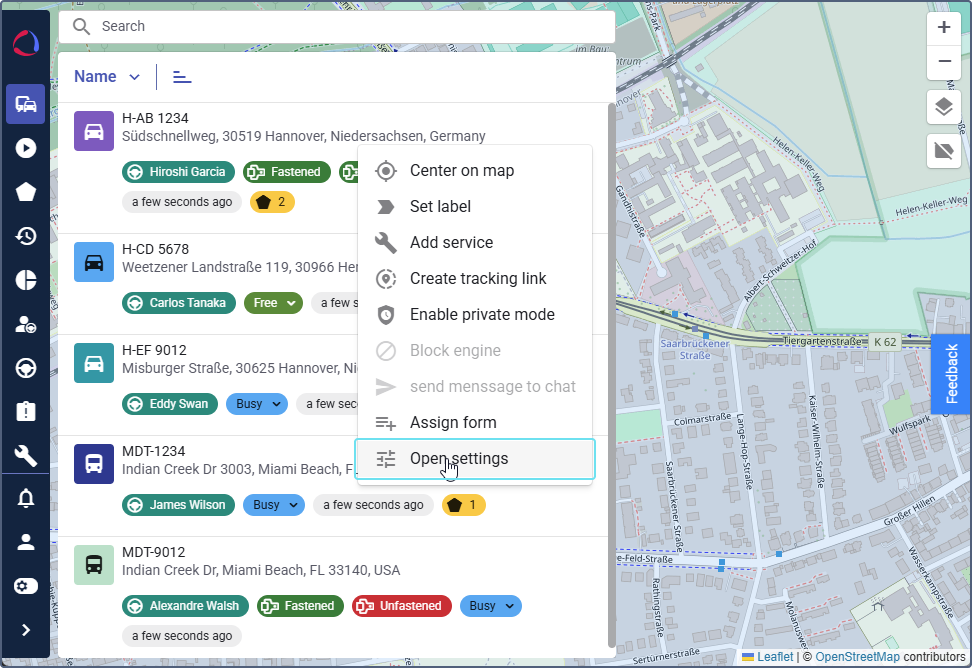
The Devices tab of the Setup center page opens with the search filtered by the selected device.
If the Setup center page isn’t added to the workspace, the Open settings action isn’t shown.
Showing a device on the map
To see where a device is, click the icon  (Show on map) in its row. The device opens on the map on the Devices page.
If your workspace has no Devices page, the button is unavailable.
Assigning labels to devices
To group devices by type, region, status, and so on, use labels. You can create labels and add devices to them on the Labels tab of the Setup center page. For details, see Creating a new label and Creating a label group.