Tracking indoor assets
Who can do it: Service provider, customer user
Where: Wialon Platform mobile app
If the Indoor billing plan is assigned to the account, the mobile app opens with the indoor screens instead of the fleet ones. You can see where each asset is located inside the building, check its status and tag battery, and unpair a tag right from your phone.
The navigation bar at the bottom contains three tabs:
- Live View: See the assets on the floor plan in real time.
- Assets: Browse, search, and filter all assets of the user.
- More: Open and manage user settings, change the map labels, and log out.
Buildings, floors, zones, anchors, gateways, and the tag registry are managed only in Wialon Platform FleetSpace on the web. The asset movement history is also available only on the web, on the Reports page.
Live View
The Live View tab shows the floor plan with the assets and zones on it. The building and floor names are shown in the upper-right corner of the map.
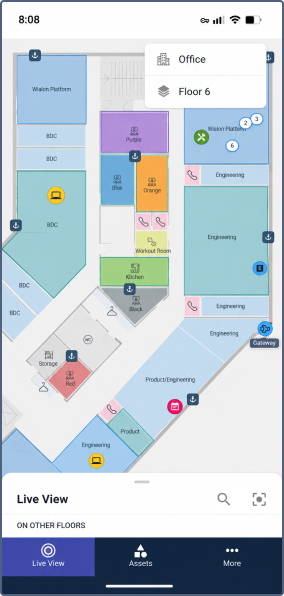
On the plan, you can see the following objects:
- Assets: markers with the asset icon, color, and name.
- Zones: colored areas, for example,
EngineeringorKitchen. The number inside a zone shows how many assets are located in it. Tap the number to see their list.
To move around the plan, drag it. To zoom in and out, use the pinch gesture. To move to the plan center, tap the icon  .
.
Selecting a building and floor
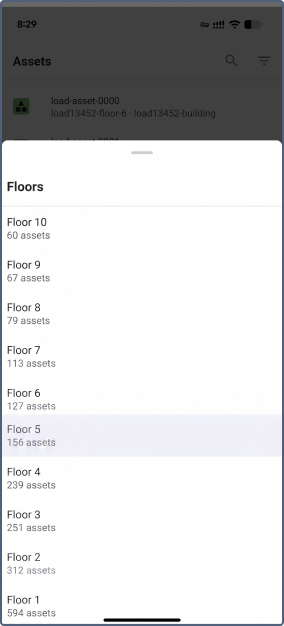
Tap the building or floor name in the upper-right corner to select the one you need. The list of floors shows how many assets are located on each of them.
Finding an asset on the plan
- Tap the search icon in the Live View panel.
- Enter the asset name, inventory number, ident, zone name, floor name, and category name.
- Tap the asset in the list.
The assets located on other floors of the building are shown in the On other floors group of the results. Tap such an asset to switch to its floor and center the plan on it.
To center the plan on the asset that’s open at the moment, tap the icon  .
.
Assets
The Assets tab shows all assets available to the user. For each asset, the list shows its icon, name, category and location: zone, floor, building. If the asset isn’t located in any zone, only the floor and the building are shown.
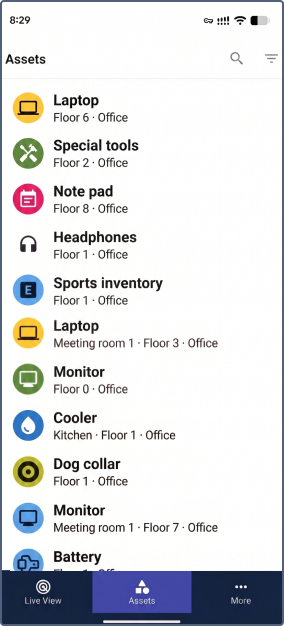
To find an asset, tap the search icon and enter its name, name, inventory number, ident, zone name, floor name, or category name.
Filtering and sorting the list
Tap the filter icon  and select the required values.
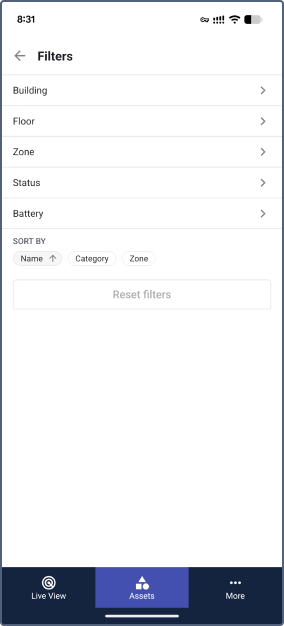
| Filter | Description |
|---|---|
| Building | The building where the asset was last detected. |
| Floor | The floor where the asset was last detected. The list shows the number of assets on each floor. |
| Zone | The zone where the asset was last detected. |
| Status | The current status of the asset. |
| Battery | The battery level of the paired tag. |
In the Sort by section, select Name, Category, or Zone. Tap the selected option again to change the sorting order.
To clear all the selected values, tap Reset filters.
Asset details
To open the details, tap the asset in the list or its marker on the floor plan. Swipe the panel up to view details in full screen.
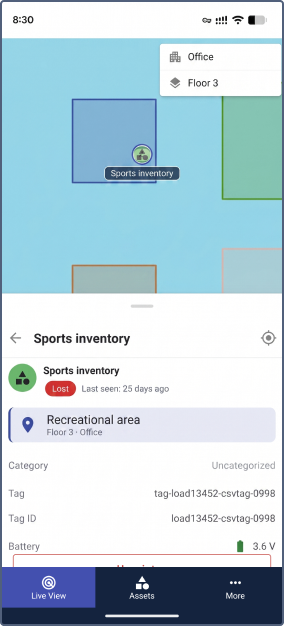
The asset details contain such information as status, location, category, tag, tag ID and battery level of the paired tag.
To center the plan on the asset, tap the icon . To return to the previous screen, tap  .
.
Unpairing a tag
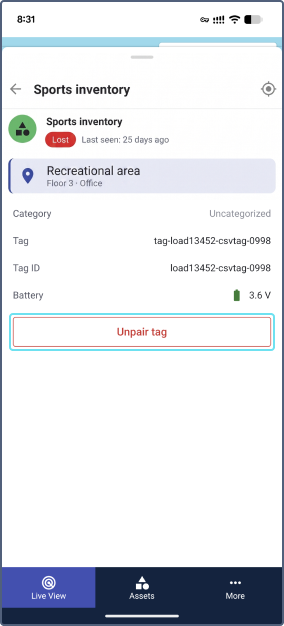
If a tag is broken or you want to attach it to another asset, unpair it:
-
Open the asset details.
-
Tap Unpair tag.
-
Confirm the action.
The asset stops appearing on the floor plan until you pair another tag with it.
Pairing a tag
To see the asset on the floor plan, pair it to a tag:
- Open the asset details.
- Tap Pair tag.
For details, see Pairing tags with assets.
Managing user settings
On the More tab, tap the icon  near the username to open the user settings.
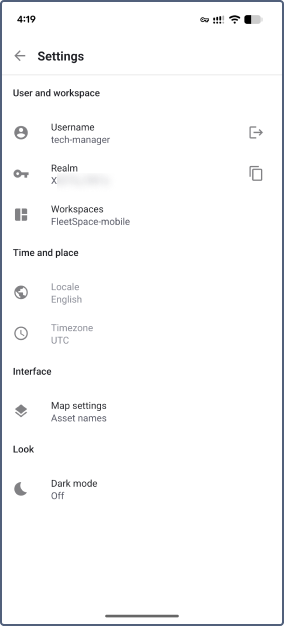
In the user settings, you can copy the realm, log out, switch the dark mode and change the workspace. For detailed instructions, see the page Managing user settings.
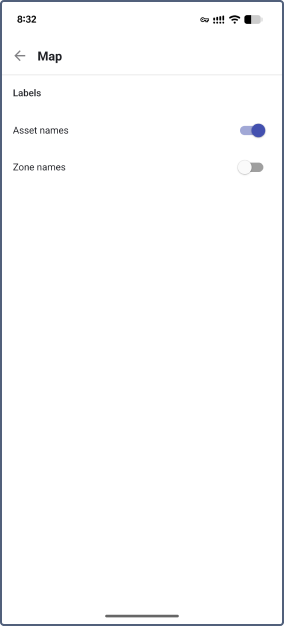
In the Interface section, you can configure the titles displayed on the building plan.
Map labels
To make the floor plan easier to read, you can hide the names shown on it. In the settings, tap Map settings and turn the Asset names and Zone names options on or off.