Configuring the “Setup center” page for customers
Who can do it: Service provider
Where: Wialon Platform FleetSpace
On the Setup center page, your customers can edit the information about their devices and manage labels without contacting you.
Adding the “Setup center” page
To add the Setup center page to your customer’s workspace:
-
Log in as the customer to Wialon Platform FleetSpace and enable the editor mode in the required workspace.
-
In the sidebar, click New page.
-
Select Setup center in the Source page field.
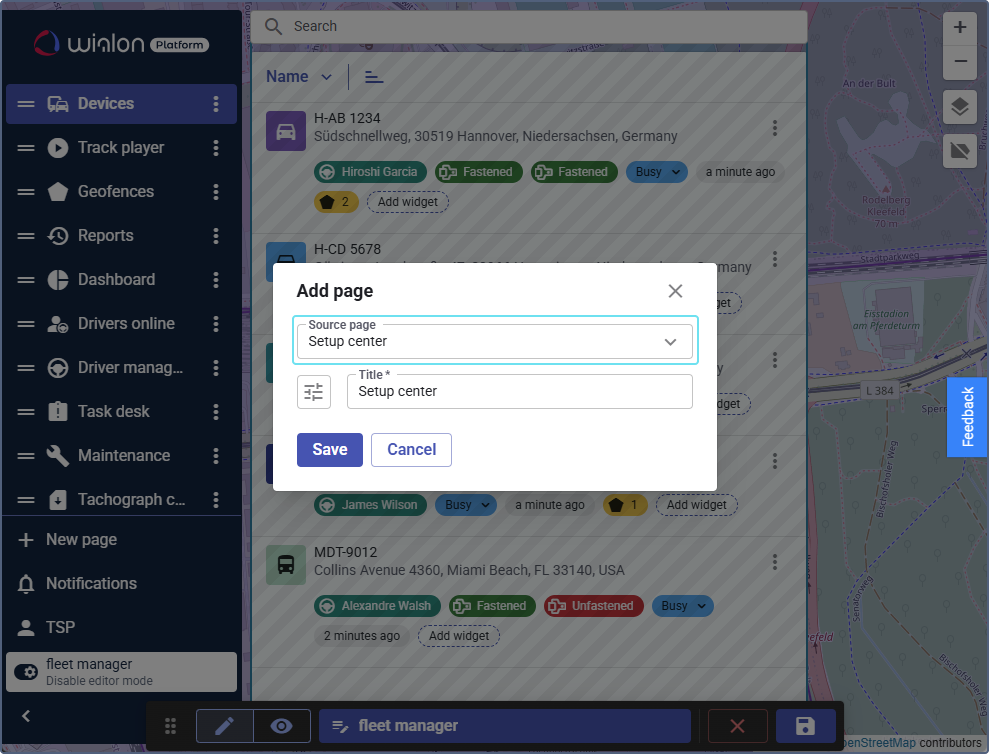
-
Change the name and icon of the page if needed, and save the changes.
-
In Wialon Platform Studio, make sure the workspace is granted to the customer users.
For more information on editing the sidebar menu, see Customizing the sidebar menu.
Adding the “Open in Setup center” widget
The Open in Setup center widget adds the Open settings action to the device menu on the Devices page. This action opens the device on the Setup center page. In the default workspace, the widget is already added. To add it to another workspace or add it again after deleting it:
- Log in as the customer to Wialon Platform FleetSpace and open the Devices page.
- Click the icon
 in the sidebar to enable the editor mode.
- Click the icon
 or
 in any device row.
- In the Available widgets list, find Open in Setup center. To quickly find the widget, start typing its name in the Search bar.
- Click the icon next to it.
- Click the icon
 to add the widget to the list.
- Click the button in the editor mode toolbar to save the workspace.
These settings apply to all devices in the list. For more information on action widgets, see Setting up widgets in the device list.