Configuring geofence widgets
Who can do it: Service provider
Where: Wialon Platform FleetSpace
Wialon Platform FleetSpace provides widgets that display geofence-related information on the Devices, Drivers online, Parameter monitoring, and Dashboard pages.
To configure widgets in a customer workspace, log in as this customer from Studio and follow the instructions from the sections below.
Geofence widgets on the “Devices” page
You can add geofence-related widgets to both the device list and the device details.
In the device list
In the device list, you can add the Geofence count (chip) widget to display the number of geofences that a device is currently located in.
To add the widget:
- In Wialon Platform FleetSpace, navigate to the Devices page.
- Click the icon
 in the sidebar to enable the editor mode.
 - Click Add widget in any device row.
- Click the icon
 next to Geofence count (chip). To quickly find the widget, start typing its name in the Search bar.
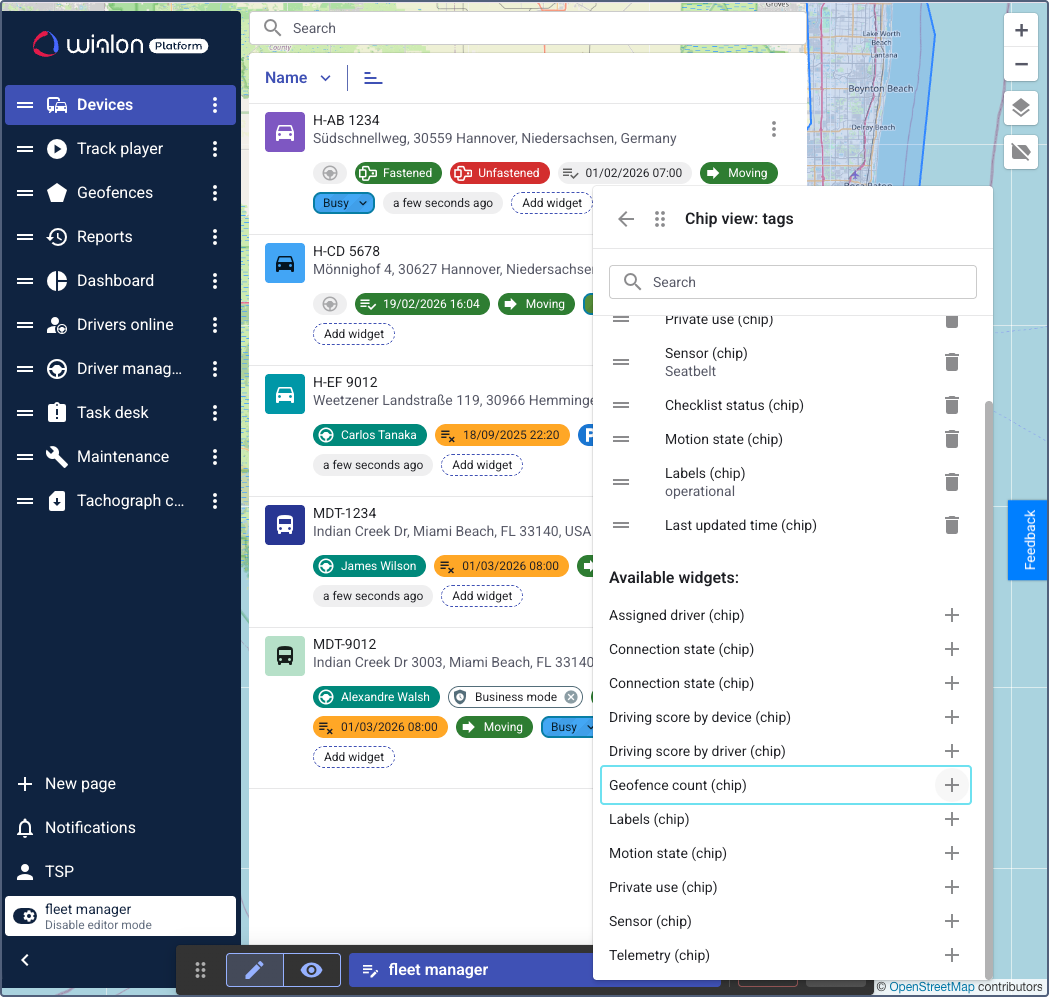
- (Optional): Pick a color for the widget.
- Click the icon
 to save the changes.
 - Save and exit the editor mode.
Hover over the geofence count to see a tooltip with the names of the geofences. If there are more than 15 geofences, the tooltip shows the first 15 names with an indicator for additional ones.
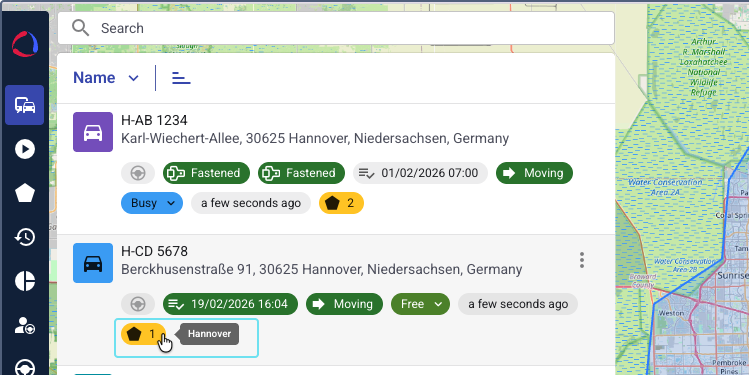
The widget isn’t displayed if the device isn’t currently located in any geofence.
In the device details
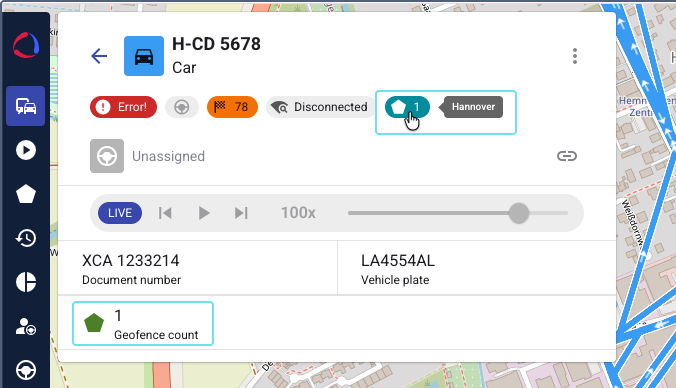
In the device details, you can add the Geofence count widget in cell and chip views.
To add the widget:
-
In Wialon Platform FleetSpace, navigate to the Devices page and click any device to open its details.
-
Click the icon
in the sidebar to enable the editor mode. -
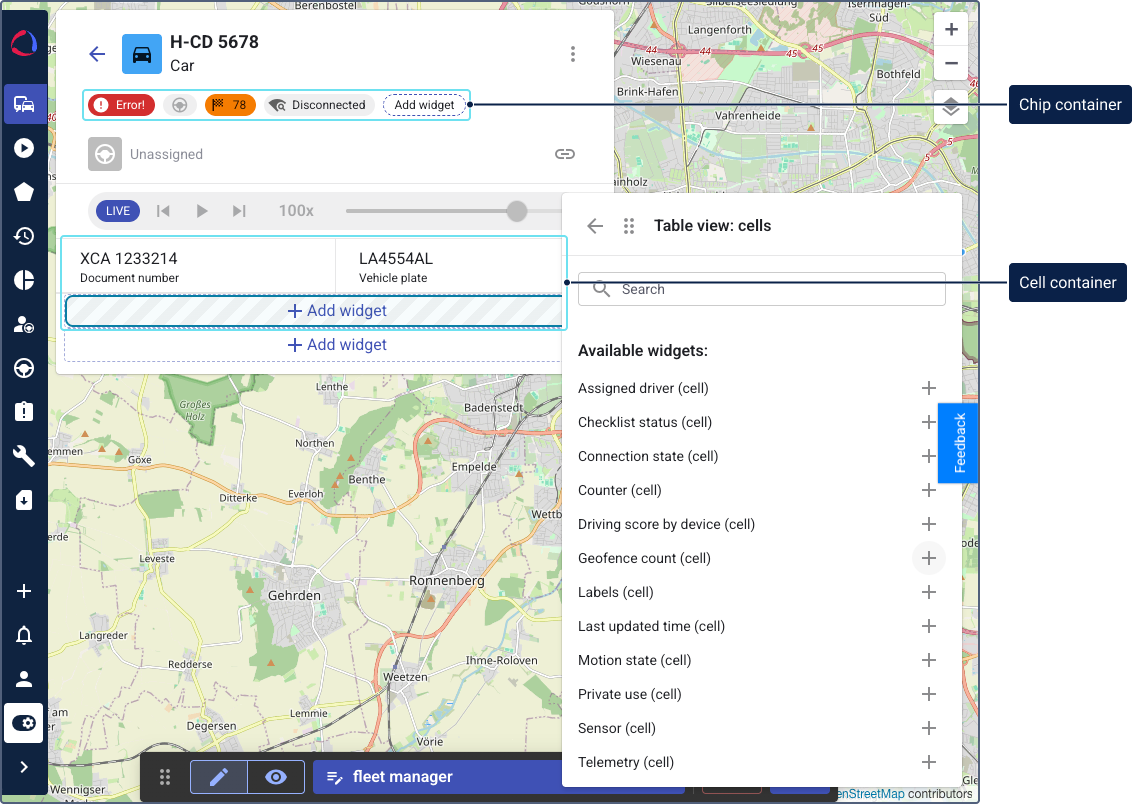
To add the chip widget, click Add widget in the chip container at the top of the page. To add the cell widget, click Add widget in the cell container.
-
Click the icon
next to Geofence count (cell) or Geofence count (chip). -
(Optional): Pick a color for the widget.
-
Click the icon
to save the changes. -
Save and exit the editor mode.
Geofence widgets on other pages
The Geofence count widget is also available on the following pages:
- Drivers online: You can add the widget to the driver list and driver details. To do this, go to the Drivers online page and enable the editor mode. Then follow the same steps as described for the device list or device details.
- Parameter monitoring: You can add the widget to the device detailed view. For more information, see Adding widgets for parameter monitoring.
Geofence widgets on the Dashboard
On the Dashboard page, you can add the following geofence-related widget:
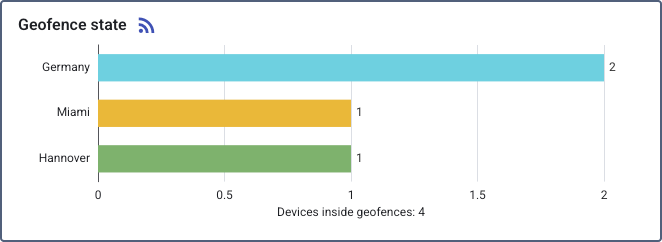
Devices by geofence (bar chart)
This widget displays a horizontal bar chart showing the number of devices located in each geofence. Geofences are sorted by device count.
To add the widget:
- Log in as a customer to Wialon Platform FleetSpace.
- Navigate to the Dashboard page.
- Click the icon in the sidebar to enable the editor mode.
- Click the Add widget button.
- In the Add to dashboard panel, locate Geofences. You can also use the search to find the widget by name.
- Click the icon next to Devices by geofence (bar chart).
After disabling the editor mode, click a chart bar to see the list of devices within the selected geofence, begin time and duration of their stay. You can sort the data by clicking a column header and download it in CSV format.
The widget displays data for theanalysis period selected at the top of the Dashboard page.