Creating devices
Who can do it: Service provider
Where: Wialon Platform Studio
This guide explains the methods for creating a device for your physical GPS tracker. The platform offers service providers both automatic and manual processes for device creation. Using the automatic process is the faster and more efficient way to manage large fleets, while the manual option allows you to add single trackers with specific settings.
Creating devices automatically
Automatic creation of devices streamlines the process of adding new hardware to the system. To enable automatic device creation, follow the next steps:
- Create a channel.
- Make sure you enabled the Autocreate toggle in the channel.
- Direct your devices to the created channel.
- (Optional): Fill in the device properties.
When the device sends its first message, a new device automatically appears on the Devices page, ready to be configured and assigned to a customer.
Creating devices manually
You can create a device manually to connect it to a channel later. This method can be applied when you have access to the device data and can fill it in advance.
The mandatory fields to connect a device to the platform are Name and IMEI as ident. Other fields are necessary for further management.
To create and configure the device manually:
-
Navigate to the Devices page and click Add one device if you have no devices created yet, or click New device above the device list.
-
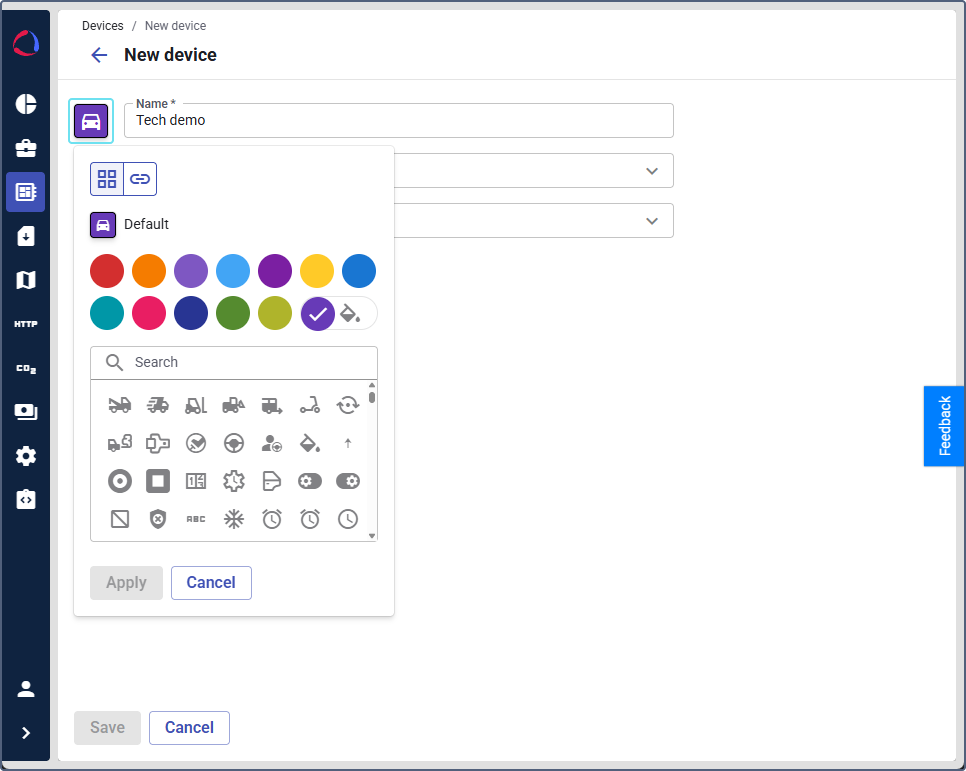
Click the device icon to set the icon and color. The selected icon and color will be displayed for this device in the device list, details and on the map in Wialon Platform Fleetspace and Wialon Platform mobile app.
-
Enter the device name in the Name field.
-
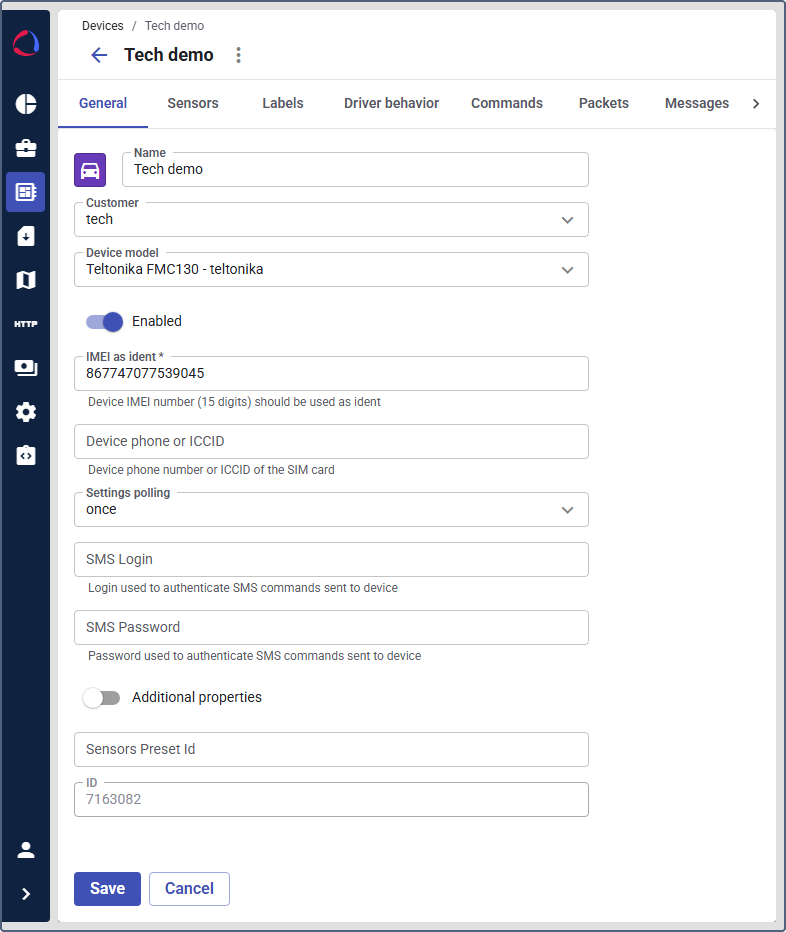
Select the customer. You can assign a customer later or create devices in the customer details. If you are creating a device on the Customers page, the Customer field is automatically prefilled with the selected customer.
-
(Optional): Select the Vehicle type from the list: Bus, Car, Tractor, Truck, Pickup, Van.
-
Select the device model. Use the Device model dropdown to select the correct manufacturer and model (for example, Teltonika FMC130 - teltonika).
-
In the IMEI as ident (*) field, enter the device’s 15-digit IMEI number (for example, 867************5).
-
In the Device phone or ICCID field, enter the device phone number or the ICCID (SIM card identifier).
-
Select the desired polling frequency from the Settings polling dropdown. The option determines how frequently the platform should check the device current settings or push an updated configuration. For example, if you select
once, the system checks the device settings only one time, usually when the device first connects. -
Ensure the Enabled toggle is switched to the on position to activate the device.
-
Click Save to finalize the device creation.
After saving the device, you can add other vehicle properties, for example, for easier identification and reporting.
Additional device settings
- To use SMS commands, enter the login or username for SMS commands in the SMS Login field. Enter the password for SMS commands in the SMS Password field.
- If the device can be used as a tachograph, enable the Tachograph option for it.
- If you have set the Additional properties for devices, fill in these fields.
- If the device supports video, you can add cameras in the Cameras section.
After you have manually created a device, create a channel and connect the device to the channel. Make sure that the physical device and the device you created in Wialon Platform Studio have the same IMEI or ID.
When the device sends its first message to the channel, the device you created will start displaying received messages and the Online indicator will turn on.