Configuring app branding
Who can do it: Service provider
Where: Wialon Platform Studio
App branding defines how the white-labeled driver app looks to your customers’ drivers: the app icon on their device, the logo on the login and splash screens, and the accent colors throughout the interface.
Setting up branding
To configure the app branding:
- On the Sites page, go to the Driver app tab and click New build.
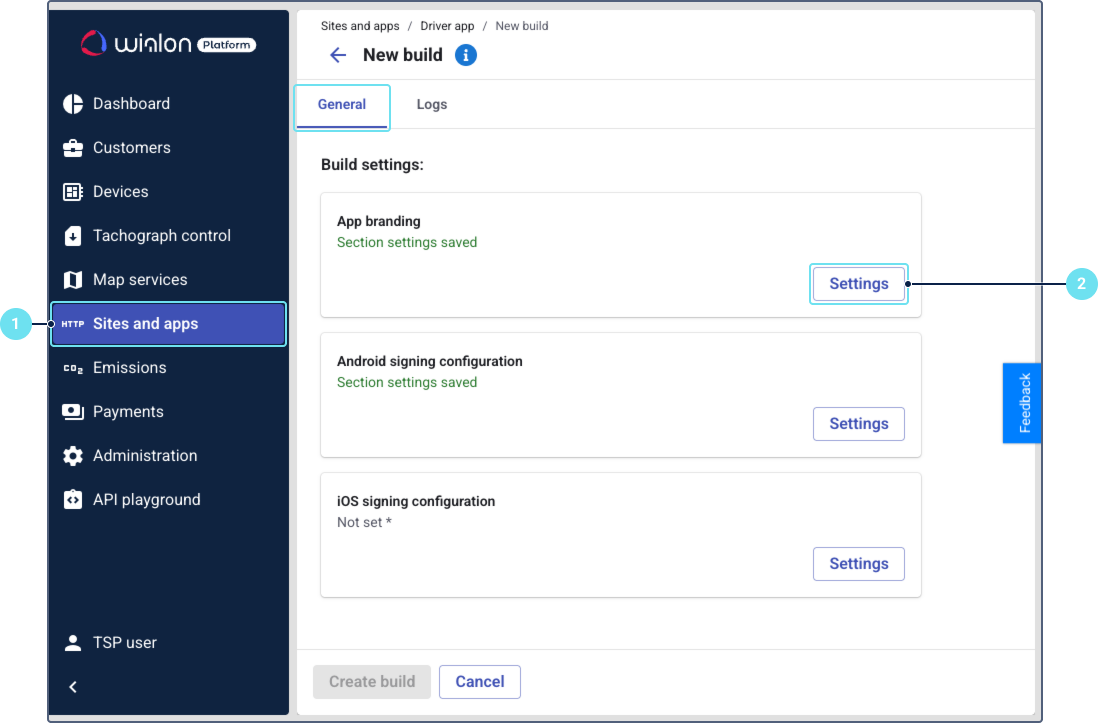
- On the General tab, click Settings next to App branding.
- Upload the app icon. It will be displayed on the device home screen.
-
Format: PNG only
-
Resolution: 1024×1024 pixels
-
Maximum file size: 1 MB
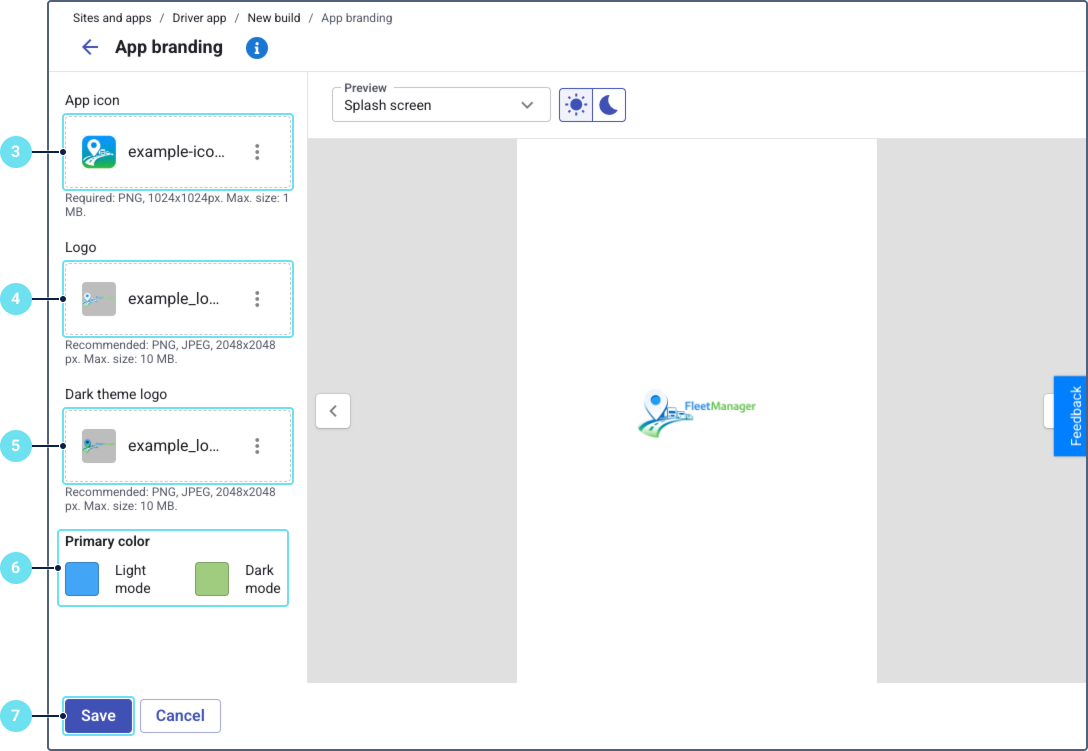
- Upload the logo for the light theme. It will be displayed on the splash screen and login page in the light theme.
- Format: PNG or JPEG
- Resolution: 2048×2048 pixels
- Maximum file size: 10 MB
- Optionally, upload the logo for the dark theme. If not provided, the light theme logo is used.
- Set the primary color for the light and dark themes using the color picker. The primary color is applied to buttons, active elements, and other accented UI components.
- Click Save.
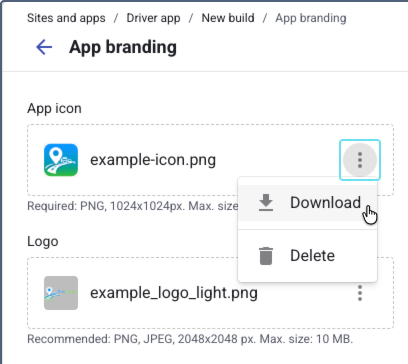
To download or delete an uploaded image, click the icon  next to the file name and select Download or Delete.
Previewing the result
The Preview area on the right side of the page shows how your branding looks in the app. Use the arrow buttons or the dropdown menu to switch between preview screens:
- Splash screen: The loading screen displayed when the app opens.
- Login screen: The login page with phone number and password fields.
- Assigned checklists: The list of checklists assigned to the driver.
- Submitted checklists: The list of checklists the driver has submitted.
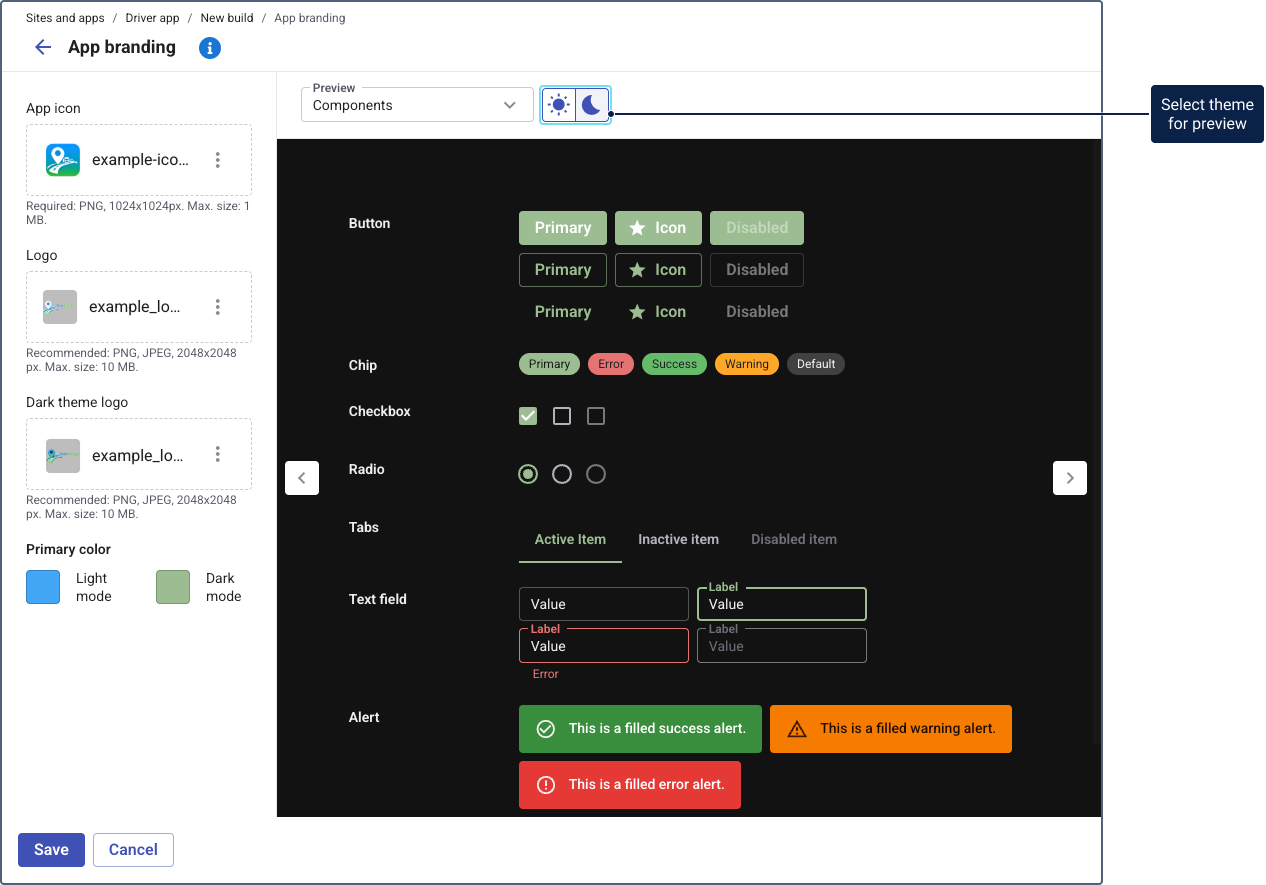
- Components: Common UI elements (buttons, chips, checkboxes, radio buttons, tabs, text fields, alerts) with your theme colors applied.
Use the light/dark mode toggle at the top of the preview are to verify both themes.
After saving the branding, return to the build General tab and proceed to configure the app identity.
If you leave the build after saving only the branding (without configuring driver app), no build row appears in the table. To continue configuring, click New build. The system loads the data from your last saved configuration.