Configuring developer account
Who can do it: Service provider
Where: Wialon Platform Studio
Before building and publishing white-labeled apps, you must configure your developer account credentials. These credentials are used to sign app binaries. They are configured once and apply to all builds.
The Developer account tab on the Sites and apps page contains three sections:
- Android: Signing credentials for publishing to the Google Play Store.
- iOS: Signing credentials for publishing to the Apple App Store.
Each section shows a status indicator. When the settings are saved, the status reads Section settings saved.
Android
The Android section stores the release keystore used to sign Android app builds. You need these credentials to publish your white-labeled app to the Google Play Store.
To configure the Android developer account settings:
- In Wialon Platform Studio, go to the Sites and apps page.
- Open the Developer account tab.
- Select Android from the left panel.
- In the Keystore area, upload your keystore file. Click the upload area or drag and drop the file. Recommended format: .keystore. Maximum size: 10 MB.
- Enter the Keystore password.
- Enter the Key alias (the name assigned to your key inside the keystore).
- Enter the Key password.
- Click Save.
Use the Google Play Console button to open your Google Play Console.
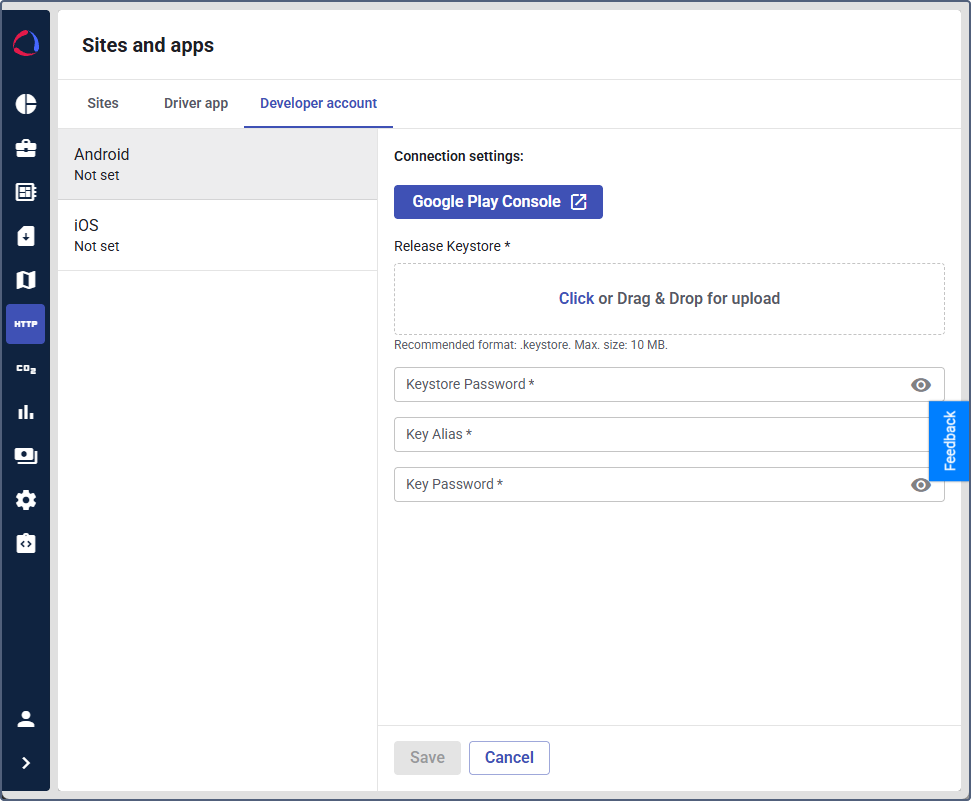
Keep your keystore file and passwords safe. Losing them means you can’t update your app in the future.
iOS
The iOS section stores the distribution certificate used to sign iOS app builds. You need these credentials to publish your white-labeled app to the Apple App Store.
To configure the iOS developer account settings:
- On the Developer account tab, select iOS from the left panel.
- In the Certificate area, upload your distribution certificate file. Click the upload area or drag and drop the file. Recommended format: .p12. Maximum size: 10 MB. If you don’t have a distribution certificate, generate one in your Apple Developer account. See Apple documentation.
- Enter the Certificate password.
- Click Save.
Use the App Store Connect button in the Connection settings section to open App Store Connect.
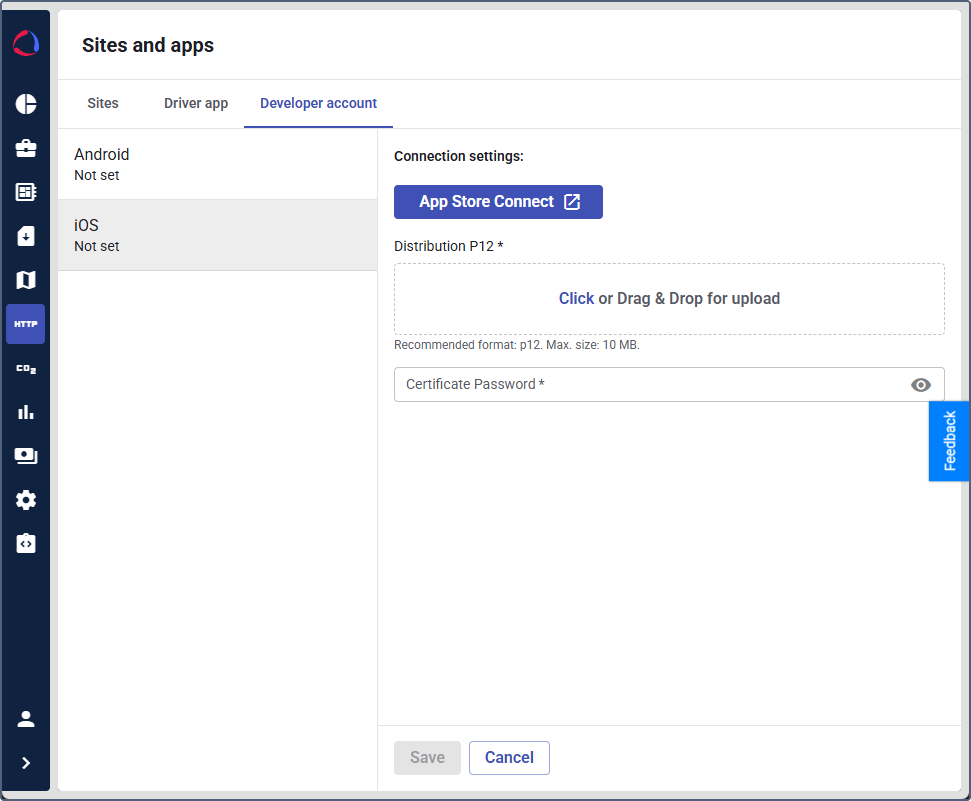
Keep your certificates backed up. If they expire or are lost, you need to regenerate them to update your app.