Viewing live tachograph data
Who can do it: Service provider, Customer
Where: Wialon Platform FleetSpace
The Live tab on the Tachograph control page displays a table with real-time tachograph data for all your drivers. Use this table to monitor driver activity, track remaining driving times, and ensure compliance with EU 561/2006 driving and rest regulations.
Drivers can see the same live data for themselves on the Tachograph tab in the Wialon Driver mobile app. For details, see Viewing your tachograph data.
“Live” table columns
Each row in the table represents a driver card currently inserted in a tachograph slot. A tachograph has two card slots, so a single device can show up to two rows if both slots have driver cards inserted.
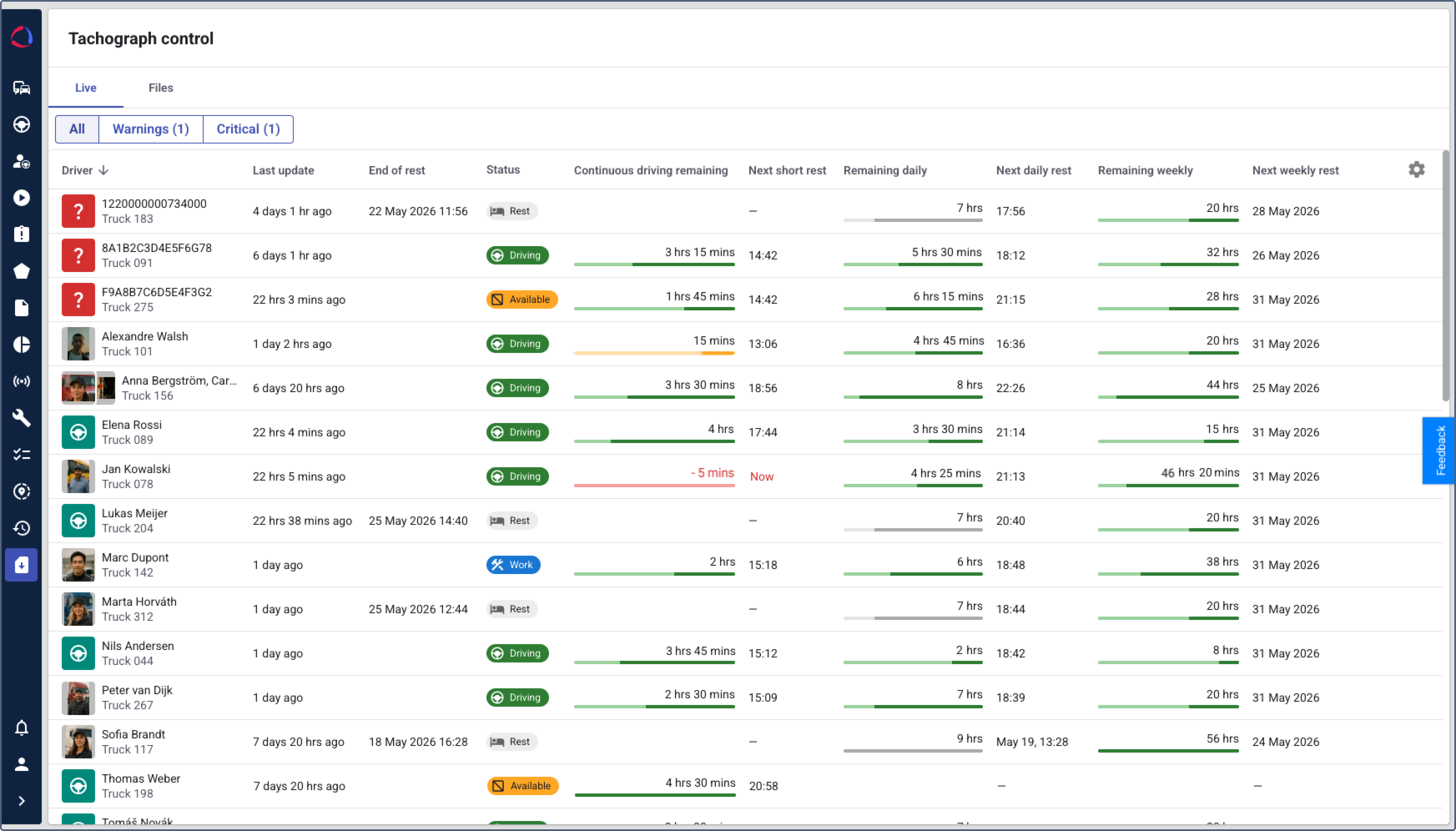
The table contains the following columns:
| Column | Description |
|---|---|
| Issues | The most severe active compliance issue for the driver, based on EU 561/2006 driving and rest regulations. Warning issues indicate that the driver is approaching a driving time limit. Critical issues are highlighted in red and indicate that the limit has been reached or exceeded. The column is empty when the driver has no active compliance issues. See Issue states for the full list of possible states. |
| Driver | The name of the driver linked to the inserted driver card, with the device name displayed below it. If the card code doesn’t match any driver in the system, the raw card code is displayed instead. If the card code matches multiple drivers, all matching drivers are shown with overlapping avatars and comma-separated names. A green badge indicates an identified driver, while a red question mark badge indicates that the driver identity couldn’t be determined. |
| Last update | The last time a tachograph message was received (for example, 1 day ago, 2 hrs ago). |
| End of rest | The date and time when the driver’s rest period ends and work resumes. This column shows a value only when the status is Rest. |
| Status | The current activity state of the driver as reported by the tachograph:  Driving, Driving,  Rest, Rest,  Other work, Other work,  Available, or Unknown (displayed when the tachograph hasn’t reported an activity state). The duration of the current activity is shown below the status label. Available, or Unknown (displayed when the tachograph hasn’t reported an activity state). The duration of the current activity is shown below the status label. |
| Continuous driving left | A progress bar showing the remaining continuous driving time out of the 4.5-hour limit. The remaining time is displayed as a label next to the bar. This column is empty when the driver’s status is Rest. |
| Next break | The date and time when the mandatory 45-minute break must start. Displays Now if the limit has been reached or exceeded, or if the driver is currently resting. Displayed in red if the rest is overdue and the driver is not resting. |
| Daily driving left | A progress bar showing the remaining daily driving time out of the 9-hour limit (for example, 9 hrs). The remaining time is displayed as a label next to the bar. When the driver’s status is Rest, the bar is shown in a muted style. |
| Next daily rest | The date and time when the daily rest must start. Displays Now if the limit has been reached or exceeded, or if the driver is currently resting. Displayed in red if the rest is overdue and the driver is not resting. |
| Weekly driving left | A progress bar showing the remaining weekly driving time out of the 56-hour limit (for example, 56 hrs). The remaining time is displayed as a label next to the bar. When the driver’s status is Rest, the bar is shown in a muted style. |
| Next weekly rest | The date and time when the weekly rest must start. Displays Now if the limit has been reached or exceeded, or if the driver is currently resting. Displayed in red if the rest is overdue and the driver is not resting. |
A dash (—) in a column indicates that no data is available (for example, the driver hasn’t started driving yet, or the device doesn’t provide this parameter).
The data shown in compliance-related columns (such as remaining driving times and next rest deadlines) depends on your hardware configuration: the tachograph model, tracker model, and CAN bus availability. Some combinations may not provide all parameters, in which case the corresponding columns display
—.
The date format depends on when the event is expected: if it falls on the same day, only the time is shown (for example, 04:11). If it falls on a different day, the date and time are shown (for example, Jul 18, 04:11). Overdue deadlines are highlighted in red.
Driving and rest limits
The progress bars and rest deadlines in the table are based on the driving and rest limits defined by EU Regulation 561/2006. The tachograph installed in the vehicle tracks compliance with these limits and reports the remaining driving times and rest deadlines to the platform.
Driving limits
| Limit type | Maximum driving time |
|---|---|
| Continuous driving | 4.5 hours |
| Daily driving | 9 hours (can be extended to 10 hours twice a week) |
| Weekly driving | 56 hours |
Rest requirements
| Rest type | Minimum duration |
|---|---|
| Short break | 45 minutes after 4.5 hours of continuous driving (can be split into 15 + 30 minutes) |
| Daily rest | 11 consecutive hours within each 24-hour period (can be reduced to 9 hours 3 times between two weekly rests) |
| Weekly rest | 45 consecutive hours (can be reduced to 24 hours, but the reduction must be compensated within the following 3 weeks) |
If the tachograph doesn’t provide data for a particular rest type, the column is left empty. Now is displayed when the rest time has been reached or exceeded, or when the driver is currently resting.
The progress bars visually indicate how much driving time remains within each limit. As the remaining time decreases, the progress bar updates accordingly. The color of the progress bar changes as the remaining driving time decreases:
- Green: The driver has sufficient driving time remaining.
- Yellow: The driver is approaching the driving time limit.
- Red: The driver has reached or exceeded the driving time limit.
All time-based values in the table (end of rest, next rest deadlines) are calculated based on the last received tachograph message, not the current time. If a device stops sending data, the displayed values reflect the state at the time of the last message.
Issue states
The Issues column in the Live table displays a text when the tachograph detects that the driver is approaching or has exceeded a driving time limit defined by EU Regulation 561/2006. Each row shows at most one issue: the most severe active condition reported by the tachograph.
Issues are divided into two severity levels:
- Warning: The driver is approaching a driving time limit (typically 15 minutes before the limit is reached).
- Critical: The driver has reached or exceeded a driving time limit. Critical issues are highlighted in red.
The following table lists all issue states displayed in the Issues column:
| Issue | Severity | Description |
|---|---|---|
| Continuous driving limit in 15 min | Warning | The driver is 15 minutes away from reaching the 4.5-hour continuous driving limit. |
| Continuous driving limit reached | Critical | The driver has reached the 4.5-hour continuous driving limit. A 45-minute break is required. |
| Daily driving limit in 15 min | Warning | The driver is 15 minutes away from reaching the 9-hour daily driving limit. |
| Daily driving limit reached | Critical | The driver has reached the 9-hour daily driving limit. |
| Daily activity limit in 15 min | Warning | The driver is 15 minutes away from reaching the 16-hour shift limit. The 16-hour shift limit counts the total time since the end of the last daily rest, including driving, other work, availability, and breaks. |
| Daily activity limit reached | Critical | The driver has reached the 16-hour shift limit. The 16-hour shift limit counts the total time since the end of the last daily rest, including driving, other work, availability, and breaks. A daily rest is required. |
| Weekly driving limit approaching | Warning | The driver is approaching the weekly driving time limit (56 hours). |
| Weekly driving limit exceeded | Critical | The driver has reached the weekly driving time limit. A weekly rest is required. |
| Bi-weekly driving limit approaching | Warning | The driver is approaching the two-week driving time limit (90 hours). |
| Bi-weekly driving limit exceeded | Critical | The driver has reached the two-week driving time limit. |
When the driver has no active compliance issues (normal state), the column is empty.
Filtering the table
At the top of the table, use the filter buttons to display drivers based on their compliance status:
- All: Displays all drivers with tachograph data.
- Warnings: Displays only drivers approaching a driving time limit.
- Critical: Displays only drivers who have reached or exceeded a driving time limit.
The number in parentheses next to Warnings and Critical indicates how many drivers currently fall into each category.
Sorting the table
You can sort the table by clicking on a column header. Click the header again to switch between ascending and descending order. The current sorting column and direction are indicated by the icon  next to the column name.
Using the search field
The Search field allows you to filter the table by specific criteria. You can use it in two ways.
Method 1: Quick search
Start typing in the search field. The system suggests matching criteria and values as you type. Select the necessary item from the suggestions to filter the table.
Method 2: Filtered search
-
Click on the search field. The available filter criteria are displayed below the field:
- Driver: Filter by the name of the driver. If multiple drivers share the same card code, all matching names are searchable.
- Device: Filter by the name of the device from which tachograph data is received.
- Status: Filter by the current driver’s activity status: Driving, Rest, Other work, Available, or Unknown. You can select multiple statuses.
- Last update: Filter by the time of the last received tachograph message.
- End of rest: Filter by the end of rest time.
- Next break: Filter by the time of the next mandatory 45-minute break.
- Next daily rest: Filter by the date and time of the next daily rest.
- Next weekly rest: Filter by the date and time of the next weekly rest.
-
Select the necessary criterion. For text criteria (such as Driver or Device), start typing the value and select it from the filtered list. For date and time criteria (such as Next short rest or Next daily rest), select the date in the calendar and specify the time range in the hh:mm fields.
-
Click Apply.
You can add several search criteria to narrow down the results. To clear a criterion, click the icon  . To clear all criteria, click the icon
  in the search field.
Customizing column visibility
You can choose which columns should be displayed in the table and change their order. To do this, click the icon  in the upper-right corner of the table header.
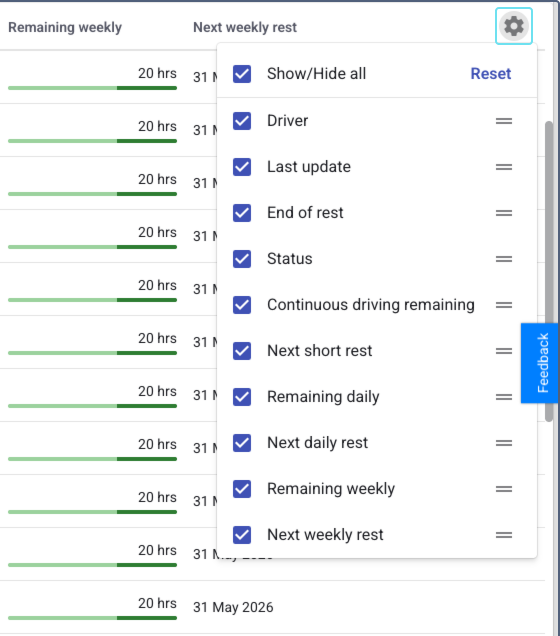
In the configuration menu, you can:
- Use the checkboxes to show or hide individual columns. Use the Show/Hide all checkbox to select or cancel the selection of all columns at once.
- Drag the columns using the icon
 to reorder them.
 - Click Reset to restore the default column configuration.
The changes apply immediately to the table view.
Questions and answers
Viewing driver tachograph details
You can view detailed tachograph data for a specific driver by opening the driver details from either of the following locations:
- On the Tachograph control page, click a driver row in the Live table.
- On the Drivers online page, click a driver in the list.
The driver detail window contains two tabs:
- General: displays the driver’s profile information and widgets configured for the driver details (for example, timeline, track player, device assignment, and so on). To customize the widgets on this tab, use the editor mode. To edit the driver’s profile information, go to the Driver management page.
- Tachograph: displays detailed live tachograph data for the selected driver.
The Tachograph tab appears only when the Tachograph control module is enabled for the customer account.
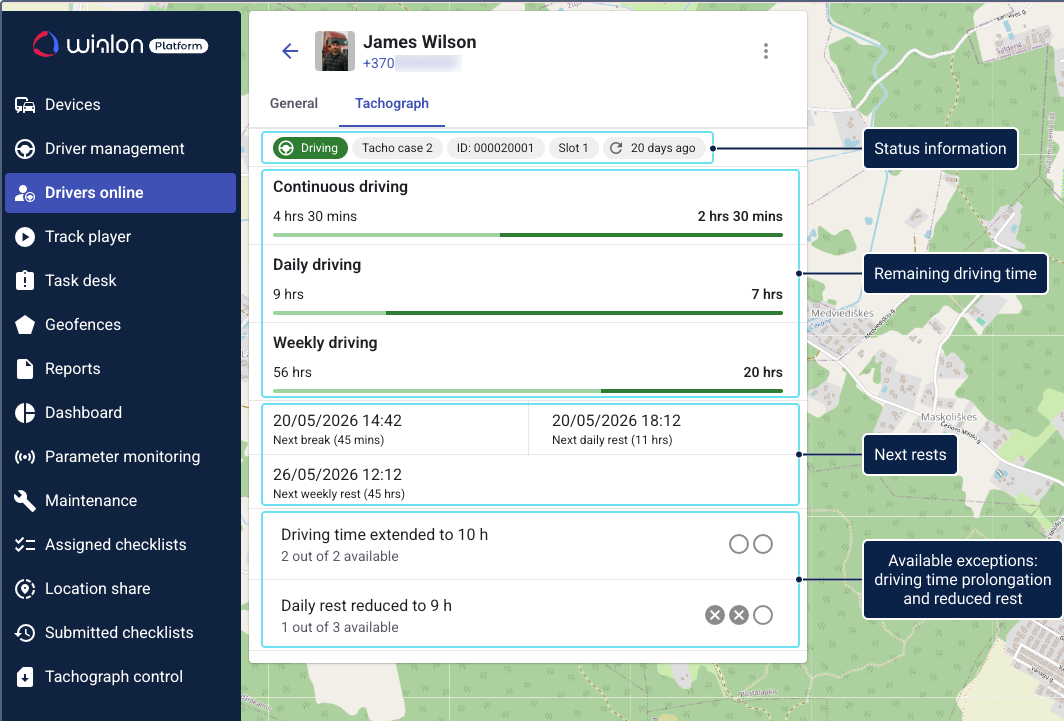
Status information
At the top of the Tachograph tab, a set of chips provides a quick overview of the driver’s current tachograph state:
| Chip | Description |
|---|---|
| Status | The current tachograph activity: Driving, Rest, Other work, or Available. The set of other chips shown below depends on the current status. |
| Device | The name of the device from which the tachograph data is received. |
| Driver card code | The identification code of the driver’s tachograph card. |
| Card slot | The tachograph slot number (1 or 2) where the driver card is inserted. |
| Last update | The time when the last tachograph message was received. |
Remaining driving time
The Remaining driving time section displays progress bars that show how much driving time the driver has left within each limit defined by EU Regulation 561/2006:
| Indicator | Description |
|---|---|
| Continuous driving | Remaining continuous driving time out of the 4.5-hour limit. |
| Daily driving | Remaining daily driving time out of the 9-hour limit. |
| Weekly driving | Remaining weekly driving time out of the 56-hour limit. |
The color of each progress bar changes as the remaining time decreases: green (sufficient time), yellow (approaching the limit), red (limit reached or exceeded).
Next rests
This section displays the date and time of each upcoming required rest:
| Rest type | Required duration |
|---|---|
| Next break | 45 minutes |
| Next daily rest | 11 hours |
| Next weekly rest | 45 hours |
If the tachograph doesn’t provide data for a particular rest type, a placeholder is shown instead.
Weekly exceptions
EU Regulation 561/2006 sets standard daily driving and rest limits but allows drivers to deviate from them a limited number of times per week. This section shows how many times the driver can extend daily driving time and reduce daily rest for the current week.
Each exception is shown as a set of circle icons. Filled circles represent used times, and empty circles represent remaining ones.
| Indicator | Maximum per week | Description |
|---|---|---|
| Driving time extended to 10 h | 2 | The number of remaining times when daily driving time can be extended from 9 to 10 hours. |
| Daily rest reduced to 9 h | 3 | The number of remaining times when daily rest can be reduced from 11 to 9 hours. This number resets after each weekly rest. For example, if a driver takes a weekly rest on Sunday, they can use up to 3 reduced daily rests (9 hours instead of 11) during the following work week before the next weekly rest. |