Building and managing app versions
Who can do it: Service provider
Where: Wialon Platform Studio
After configuring the app branding and app identity for both Android and iOS, you can build the white-labeled Wialon Driver app. The system generates the app binaries that you can download and submit to app stores.
Building the app
To build the white-labeled app:
-
On the General tab of the build details, verify that the App branding and at least one app configuration section (Android app configuration, iOS app configuration, or both) show a configured status.
-
Click Create build.
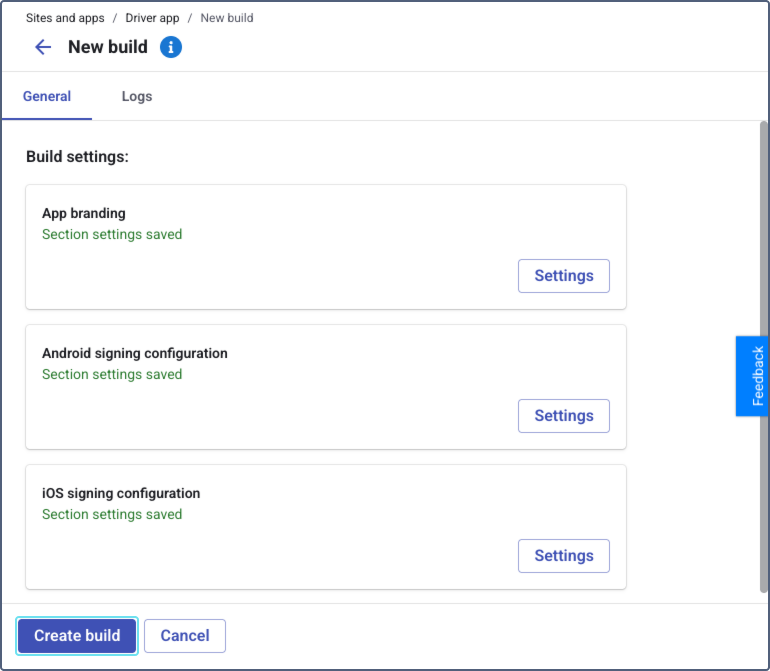
-
The system starts generating the app binaries for both Android and iOS. The build process runs in the background, and you can navigate away from the page.
-
When the build is complete, you receive a notification to the email specified while configuring driver app.
The build appears in the table on the Driver app tab with one of the statuses: Completed, Error, or In progress.
Downloading a build
To download a completed build:
-
Navigate to the Driver app tab on the Sites page.
-
Find the build with the Completed status.
-
Click the action menu icon
 and select Download.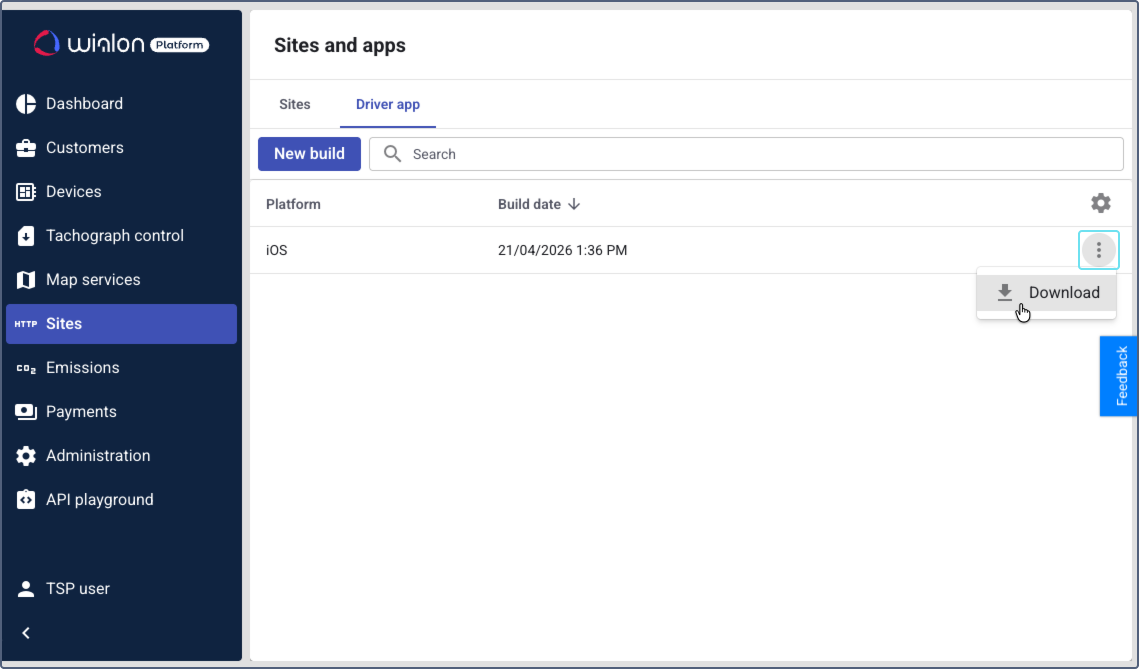
-
The system downloads the build file:
- AAB for Android builds
- IPA for iOS builds
After downloading, upload the build to the corresponding app store and submit it for review. For detailed instructions, see Uploading builds to app stores.
After each new build, you must re-upload the app binary and resubmit it to the app stores for review.
Fixing a failed build
If a build fails (status: Error), hover over the error chip to see the error description in the tooltip.
If the build has several errors, the tooltip shows only the first one.
To fix a failed build:
- Navigate to the Driver app tab on the Sites page.
- Click New build. The system loads the data from your last configuration, so you don’t need to start from scratch.
- Review and fix the issue described in the error tooltip.
- Click Create build.
You can’t open or edit a build with the Error status directly. Use New build to create a corrected version.