Configuring signing assets
Who can do it: Service provider
Where: Wialon Platform Studio
Before building a white-labeled driver app, you must provide signing assets for Android and iOS. These assets are required to sign app binaries (the AAB and IPA files generated during the build) and publish them to the Google Play Store and Apple App Store under your own developer accounts.
Android signing assets
To configure the Android signing assets:
-
Prepare the keystore file in the .jks format. It is used to sign the Android app binary. If you don’t have it, create one for Android App Bundle using terminal or Android Studio. See Android documentation. You will also need the keystore password, key alias and password on step 4.
-
In Wialon Platform Studio, go to the Sites page and open your build.
If you haven’t configured signing assets yet, no build row appears in the table. Click New build to continue. The system loads the data from your last saved branding configuration.
-
On the General tab, click Settings next to Android signing assets.
-
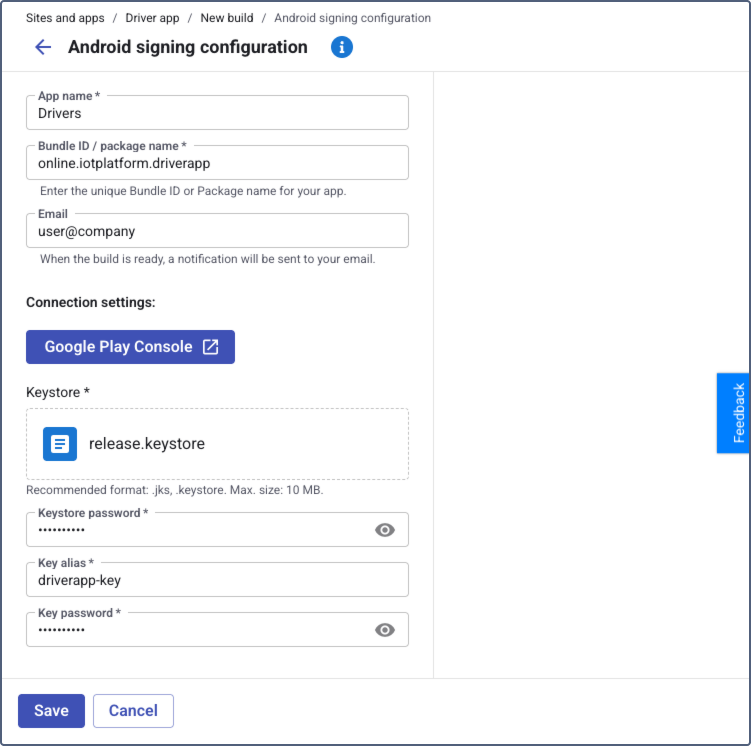
Fill in the fields below. The required fields are marked with an asterisk (
*):Field Description App name * The name of the app. It will be displayed in the Google Play Store. Email * Your contact email to notify you when the build is complete. Package name * The unique identifier for your Android app (for example, com.yourcompany.driver). The package name is suggested automatically based on the app name. You can’t change it later.Keystore * Upload the keystore file prepared in step 1. All fields below are also related to the prepared keystore. Keystore password * The password for the uploaded keystore file. Key alias The name assigned to your key inside the keystore. Key password * The password for the specific key. It can be the same as the keystore password. In the Connection settings section, use the Google Play Console link to access your Google Play Console.
-
Click Save.
Keep your keystore file and passwords safe. Losing them means you won’t be able to update your app in the future.
iOS signing assets
To configure the iOS signing assets:
-
Prepare the following files:
- Distribution certificate in the .p12 format. If you don’t have it, you can generate one in your Apple Developer account. See Apple documentation. You will also need the password for this certificate.
- Provisioning profile in the .mobileprovision format. It links the app to your developer account and devices. If you don’t have it, you can generate one in your Apple Developer account. See Apple documentation.
-
Go to Wialon Platform Studio, open the Sites page, navigate to the Driver app tab and open the build.
-
On the General tab, click Settings next to iOS signing assets.
-
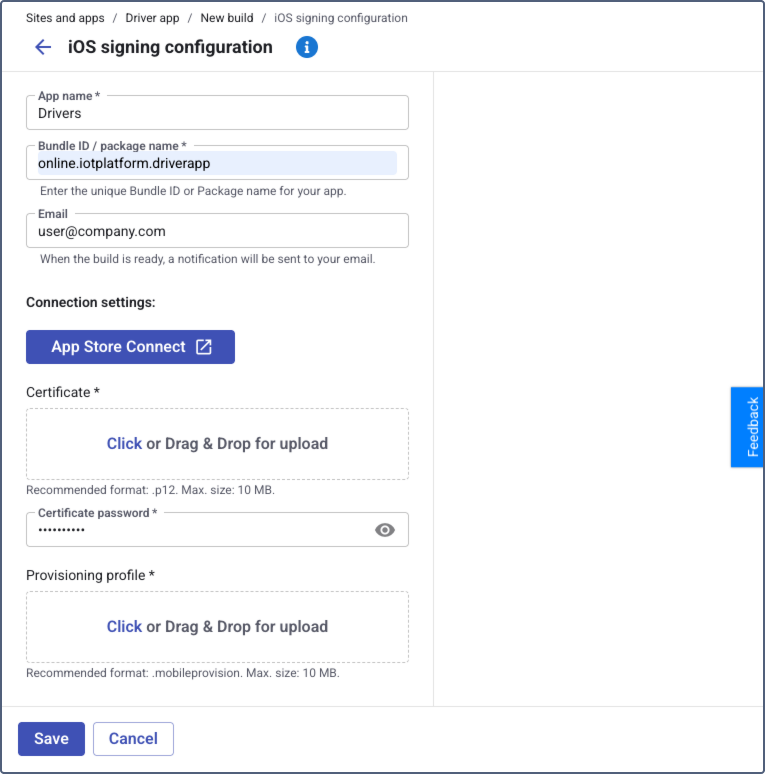
Fill in the fields below. The required fields are marked with an asterisk (
*).Field Description App name * The name of the app. It will be displayed in the Apple App Store. Bundle ID * The unique identifier for your iOS app (for example, com.yourcompany.driver).Make sure the Bundle ID matches the one registered in your Apple Developer account. Changing the Bundle ID after the initial app submission may require creating a new app listing in App Store Connect.
Email * Your contact email to notify you when the build is complete. Certificate * Upload the signing certificate file (.p12 format). See step 1 for how to obtain it. Certificate password * The password for the uploaded certificate. Provisioning profile * Upload the provisioning profile file (.mobileprovision format). In the Connection settings section, use the App Store Connect link to access App Store Connect for further configuration.
-
Click Save.
Keep your certificates and provisioning profiles backed up. If they expire or are lost, you’ll need to regenerate them to update your app.
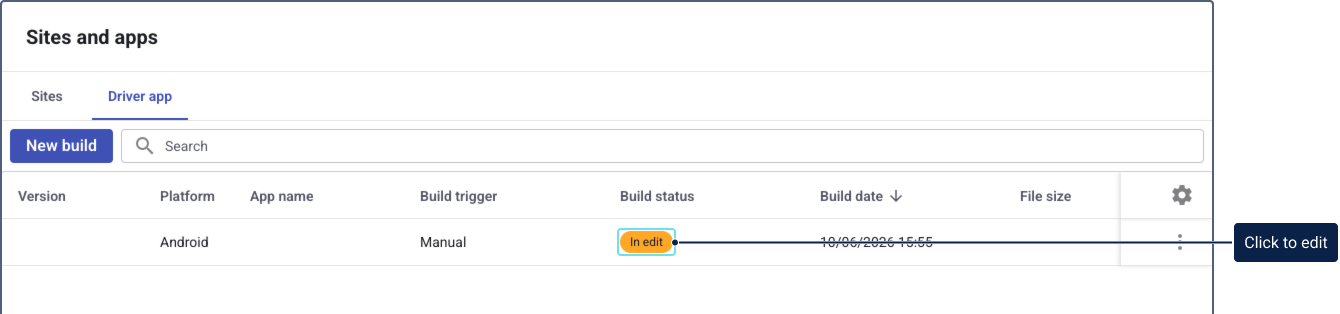
After you save the Android or iOS signing assets, the build appears in the table on the Driver app tab with the In edit status. Click the In edit status chip to open the build and continue editing (for example, to configure the remaining signing assets or update the branding).