Generating the “Driver activity events” report
Who can do it: Service provider, Customer
Where: Wialon Platform FleetSpace
The Driver activity events report shows the events recorded by tachographs for several drivers over a selected period. Use it to find specific occurrences, such as every card insertion or every vehicle change, without opening the daily activity view for each driver separately.
Generating the report
To generate the report, follow these steps:
- In Wialon Platform FleetSpace, go to the Reports page.
- In the report type list, select Driver activity events.
- Click the Period, UTC field, specify the report period, and click Apply.
- In the drivers list, select one or more drivers.
- In the event types list, select the events you want to include, or leave all event types selected.
The report is generated automatically after you select the drivers and event types. To reset a filter, click the icon  next to it.
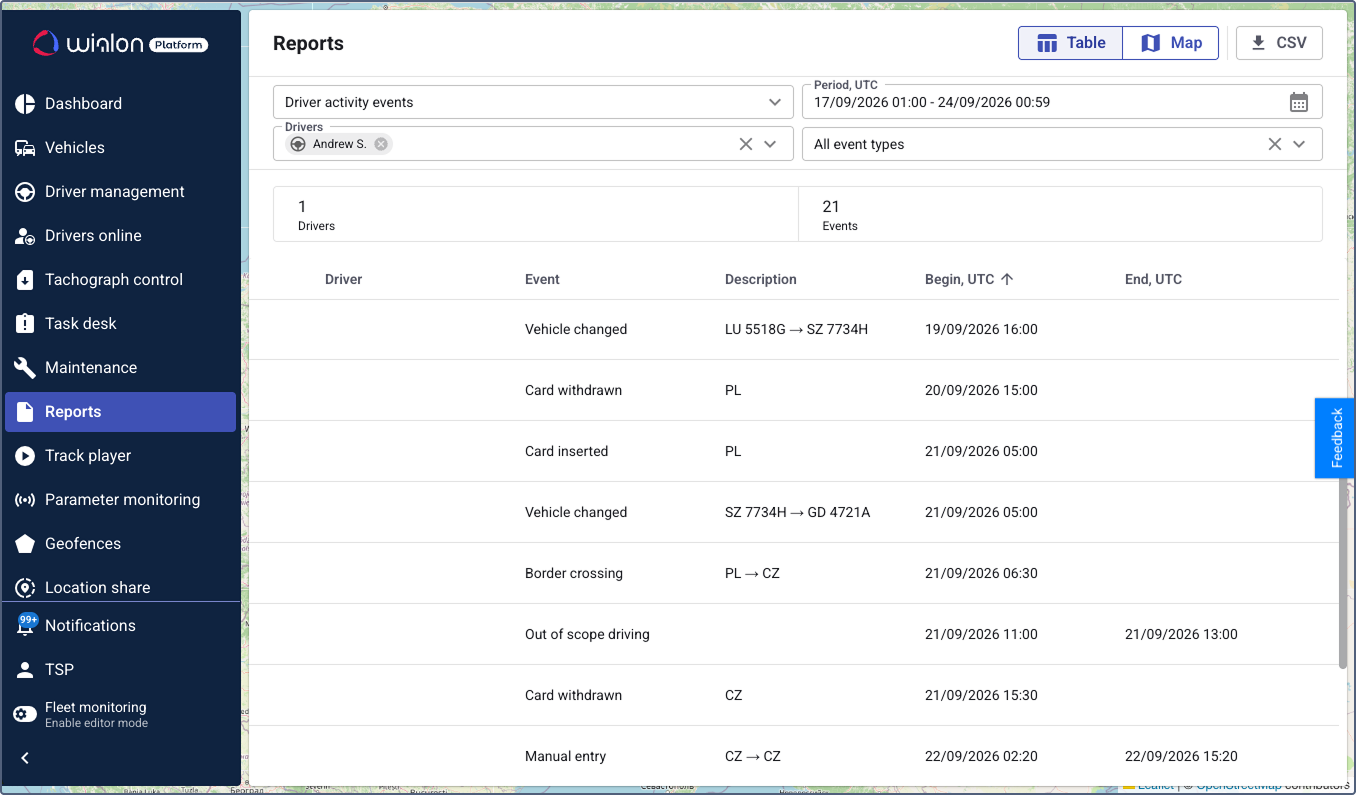
Your selections are saved, so the report reopens with the settings you used last time.
The report period and all event times are shown in UTC, not in your account time zone. This matches the way tachographs record data, so the values can be compared with the original tachograph files.
Event types
You can include the following events in the report:
| Event type | Description |
|---|---|
| Card inserted | The driver card was inserted into a tachograph slot. |
| Card withdrawn | The driver card was removed from a tachograph slot. |
| Manual entry | The driver added activities manually, for example, for a period when the card wasn’t inserted. |
| Border crossing | The vehicle crossed a country border. |
| Ferry or train crossing | The vehicle was transported by ferry or train. |
| Cargo loaded | A cargo loading operation was recorded. |
| Cargo unloaded | A cargo unloading operation was recorded. |
| Vehicle changed | The driver started working on another vehicle. |
| Out of scope driving | The driver marked driving as out of the scope of EU Regulation 561/2006. |
| Gaps in data | A period for which the tachograph card provides no records. Unlike the other items in this list, it isn’t an event recorded by the tachograph. For details, see Gaps in data. |
For the events that happen at a single moment (card insertions and withdrawals, border crossings, cargo operations, and vehicle changes), the End, UTC column is empty. For the events that last for some time (manual entries, ferry or train crossings, and out of scope driving), the column shows when the event ended.
Report results
The report is organized into two parts: a summary at the top and a detailed table below.
Summary
The summary section shows the following:
| Card | Description |
|---|---|
| Drivers | The number of drivers that have at least one event matching the selected filters. |
| Events | The total number of events found. |
Report table
The results are grouped by driver. The collapsed row shows the driver name and, in the Event column, the number of events found for this driver. Click the icon  to expand the row and see the individual events.
| Column | Description |
|---|---|
| Driver | The name of the driver. |
| Event | The type of the recorded event. In the collapsed row, it shows the number of events found for this driver. |
| Description | Additional details reported by the tachograph. The content depends on the event type: the country entered by the driver for card insertions and withdrawals (for example, EST), the registration numbers of the vehicles for vehicle changes (for example, 123 ABC or AB 1234 → EF 5678). |
| Begin, UTC | The date and time when the event started. |
| End, UTC | The date and time when the event ended. The column is empty for the events that happen at a single moment. See Event types. |
To sort the table, click a column header. Click the header again to switch between ascending and descending order. By default, the events are sorted by the Begin, UTC column.
Exporting the report
To download the report in CSV format, click CSV at the top of the page.