Searching and filtering devices
Who can do it: Service provider, Customer
Where: Wialon Platform Studio, Wialon Platform FleetSpace
The Search feature on the Devices page helps you filter the device list by various criteria. You can use it to quickly find a specific device or manage multiple devices that share common attributes.
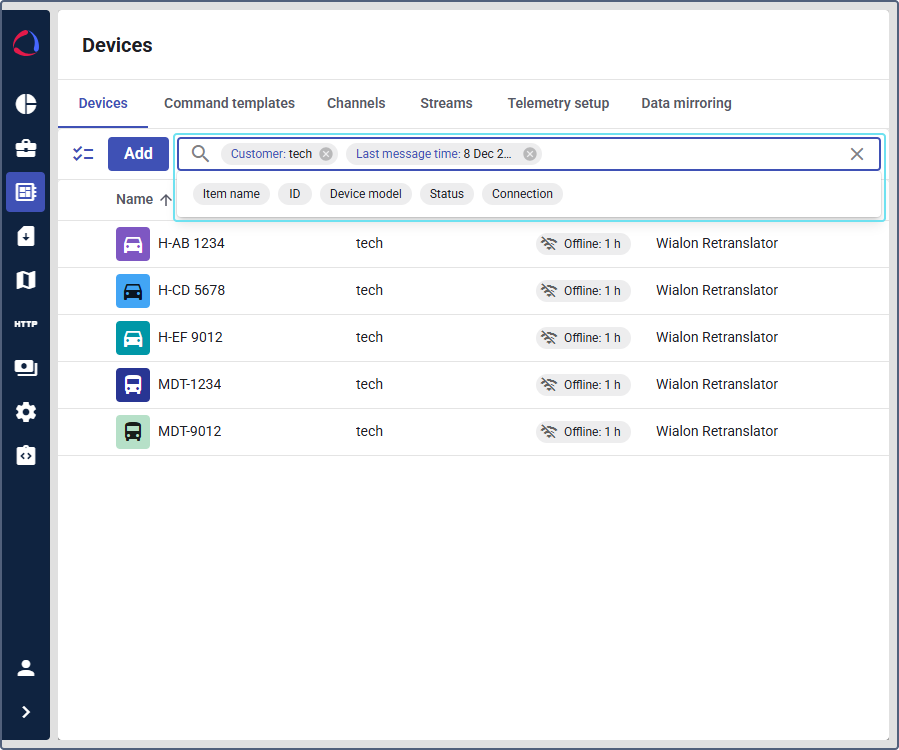
Different criteria are available in Wialon Platform Studio and Wialon Platform FleetSpace. See their list at the end of this page.
To search and filter devices, you can use the methods described below.
Method 1
To find the necessary device using this method, follow the steps below.
-
Start typing your request in the search field.
Below the field, you can see all the items that match your request. For example, if you type Bus when searching for devices in Wialon Platform FleetSpace, and you have a device named Bus 12, a label named Busy, and a geofence named Bus stop with devices in it, all of these items will be suggested for selection in the search field.
-
Select the necessary item.
For example, if you select the Bus stop geofence, the list will show all the devices currently located inside this geofence.
After that, you can enter new requests and select new criteria to reduce the number of search results.
Method 2
To use this method, follow the steps below.
-
Click on the search field.
-
Select the necessary criterion. For example, when searching among devices, you can select the Device name criterion if you remember the device name.
-
Start typing your request in the search field. For example, if you select the Device name criterion, start typing the device name and select the necessary device in the filtered list.
For criteria such as Status and Connection, just select the necessary status or connection state, respectively. The Last message time criterion requires selecting a time period in the calendar.
-
Click Apply.
After that, the list is dynamically filtered so that it shows only the devices that match your request. To clear the request, click the icon  .
.
You can add several search criteria to reduce the number of results.
Removing search criteria
To cancel the criterion selection, click the icon .
To move between criteria, use the left or right arrow on your keyboard or click on the desired criterion.
To clear all the search field, click the icon in the search field.
Description of search criteria
The following criteria are available for searching devices in Wialon Platform Studio:
| Criterion | Description |
|---|---|
| Item name | The name of the required device. |
| Ident | The identifier of the device (usually IMEI or serial number). |
| ID | The ID of the device in the system. |
| Customer | The customer who owns the device. Select the Unassigned option to find all devices that are not currently assigned to any customer. |
| Device model | The model of the device. |
| Last message time | The date and time the last message was received from the device. You can use this criterion to find devices that sent data within a specific time period. |
| Status | The status of the device: enabled or disabled. |
| Connection | The connection state of the device: connected or disconnected. |
The following criteria are available for searching devices in Wialon Platform FleetSpace:
| Criterion | Description |
|---|---|
| Device name | The name of the required device. |
| Geofence name | The name of a geofence. Use this criterion if you want to find the devices located within a specific geofence. |
| Label | The label assigned to the device. |