Monitoring tachograph data with widgets
Who can do it: Service provider, Customer
Where: Wialon Platform FleetSpace
Widgets let you keep tachograph data in front of you on the pages you work with every day, without opening the Tachograph control page. Pick a widget by the task you need to solve:
| Task | Widget | Where |
|---|---|---|
| Check the download deadline of a single driver or device | Tacho file (chip and cell) | Device and driver lists and details |
| See how the whole fleet keeps to the download intervals | File compliance (value card) | Dashboard |
| Watch how many driving and rest rule violations your drivers commit | Tacho infringement count (value card) | Dashboard |
| Get the last tachograph file of a driver | Driver latest tachograph file | Driver details |
All these widgets are added in the editor mode and aren’t included in the default workspace. A service provider must add them for each workspace where they should be shown.
Checking the deadline of a driver or device
The Tacho file widget shows the download deadline status next to a driver or device name, as a chip or as a cell. For the statuses and the color coding, see Deadline widgets in device and driver lists.
Checking the download compliance of the fleet
The File compliance (value card) widget shows one summary value on the Dashboard: the download compliance rate, the number of downloads due soon, or the number of overdue downloads. For the widget values and the details view, see “File compliance” dashboard widget.
Watching the number of infringements
The Tacho infringement count (value card) widget shows how many infringements of driving and rest rules were detected in your fleet, so you can follow the trend without generating the Tachograph infringements report.
This widget also requires the Drivers module enabled for the customer account and the Read permission on drivers, because infringements are recorded for drivers.
To add the widget, find it in the Tachograph section of the Add to dashboard panel. See Setting up widgets on the Dashboard for the instructions.
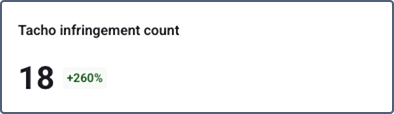
The card shows the number of infringements for the analysis period selected on the Dashboard and the difference compared with the previous period of the same length. Only the infringements of the drivers you have access to are counted, and the vehicle type filter doesn’t affect the value. You can add this widget to the Dashboard only once.
Click the card to see how many infringements each driver has. The chips at the top show the selected period and the number of drivers in the list.
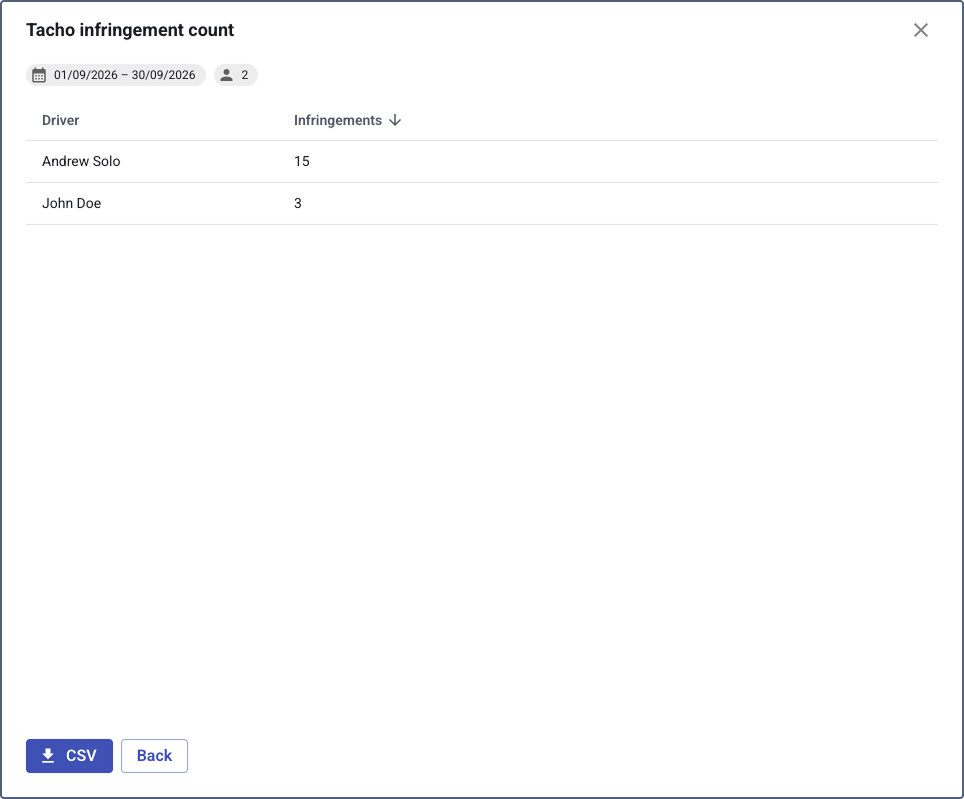
| Column | Description |
|---|---|
| Driver | The name of the driver. |
| Infringements | The number of infringements detected for this driver in the selected period. |
You can sort the data by clicking a column header and download it in CSV format. If there are no infringements for the selected period, the widget shows zero and the details don’t open.
Getting the last file of a driver
The Driver latest tachograph file widget shows the most recent tachograph file downloaded for the driver and lets you download it to your computer without going to the file list.
To add the widget, open the driver details on the Drivers online page and follow the instructions from Adding widgets to the driver details.
The widget isn’t shown for the drivers who have no downloaded files yet. To get the files, request them manually or configure automatic file requests.